
Company settings
Where you tell Ken AI who you are - your company name, website, LinkedIn page, and a plain-text pitch - so the AI builder always has accurate context when generating campaigns.
Overview
Company settings is the single place you set the core facts Ken AI uses to research and write about your company. It stores your company name (which also appears in the workspace switcher), website URL, LinkedIn company page URL, a free-text Context field, a company logo, and Knowledge files. Everything on this page feeds the Campaign Builder automatically - you do not need to re-enter this information each time you start a new campaign.
To open it: click Settings in the left sidebar, then click the Company tab.
Before you start
You must be a workspace Admin to view or edit the Company tab. The tab is hidden from Editors and Members. If you do not see the Company tab in Settings, your role is Editor or Member - ask your workspace Admin to make the changes or to upgrade your role.
How to configure company settings
Fill in the core fields
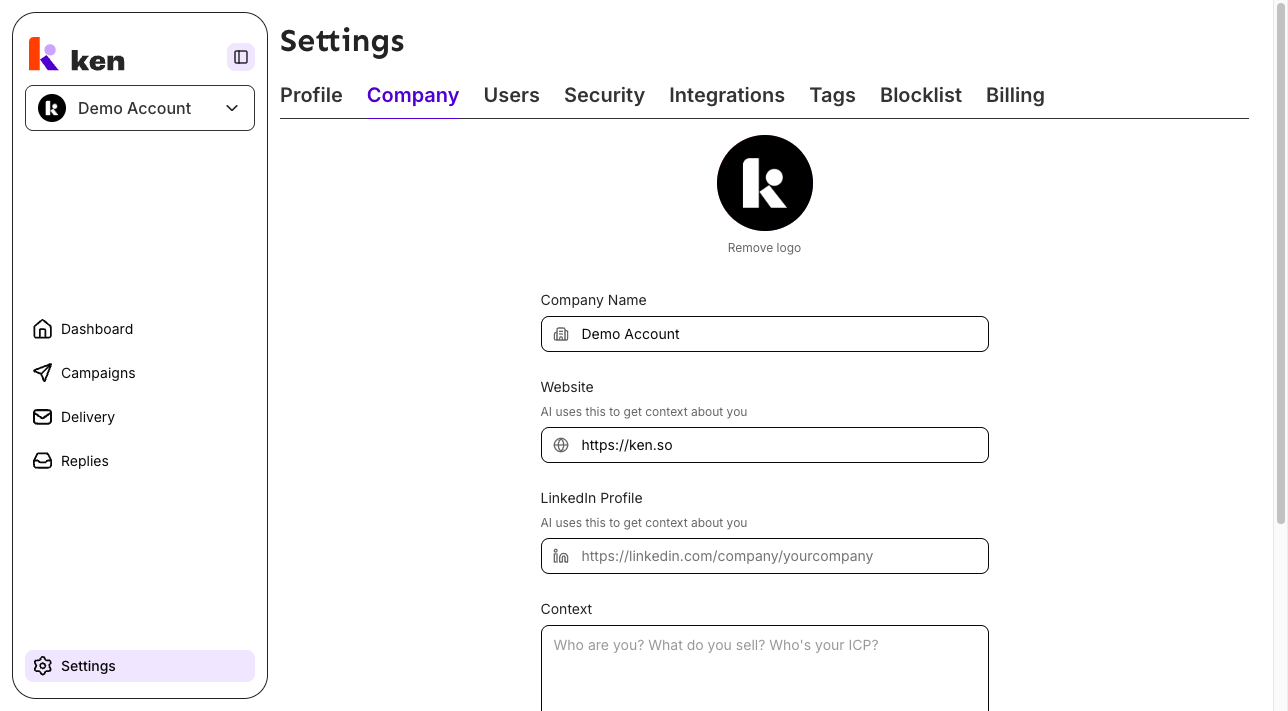
Open Settings > Company. The form shows five sections:
-
Company logo - a circular logo at the top of the form. Click it to upload an image (any common image format, up to 10 MB). If no logo has been uploaded and you have a website or LinkedIn URL saved, Ken AI will attempt to derive a logo automatically after you save. If a logo exists, a Remove logo link appears below the circle.
-
Company Name - the display name shown in the workspace switcher across the top of the sidebar. Changing it here renames the workspace immediately after you click Save.
-
Website - your company's public website URL (for example,
https://yourcompany.com). The field accepts any valid URL. Ken AI uses this to fetch context about your business. Saving a new website URL also triggers a background pre-scrape so the Campaign Builder has fresh research data ready the next time you build. -
LinkedIn Profile - your LinkedIn company page URL. Must be a full
https://linkedin.com/company/...address. Ken AI uses this as a second source of company context. -
Context - a free-text area for anything not captured by the website or LinkedIn page. A good Context entry answers three questions: Who are you? What do you sell? Who is your ideal customer? The placeholder text shows this prompt to guide you. The field resizes vertically if you need more space.
Save your changes
Click Save at the bottom of the form. The button is enabled only when at least one field has changed from its last-saved value. All changed fields are sent together in one request - you cannot save fields individually. A success toast confirms the update. If the save fails, an error toast shows the reason.
If you navigate away with unsaved changes, a dialog warns you and lets you stay to save or discard.
Manage knowledge files
Below the main form fields is the Knowledge files section. These are documents you upload once, at the workspace level, so Ken AI can reference them across every campaign you build - without requiring a re-upload each time.
To add files:
- Click Add files in the top-right corner of the Knowledge files section.
- A file picker opens. You can select multiple files at once.
- Accepted file types:
.txt,.md,.csv,.json,.html,.htm,.pdf,.docx. - Wait for the upload to complete. Each file appears in the list when ready.
File status indicators:
- Read (shown in blue with a checkmark) - the file has been parsed and its text is available to the AI.
- Attached (shown in gray) - the file is stored but has not been fully parsed yet (for example, a PDF being processed).
To remove a file:
Click the trash icon to the right of the file name. The file is removed immediately without a confirmation dialog.
Files uploaded here are the same files available in the Campaign Builder under "Your files". Adding or removing files in either location updates the same shared list.
How it works
When you save a website or LinkedIn URL for the first time (or update it), Ken AI queues a background scrape of that domain. The scrape fetches publicly available page text and stores it as research material tied to your workspace. The next Campaign Builder session can skip re-scraping your own site and go straight to prospect research, which saves time on every build.
Logo derivation is best-effort: after you save a website or LinkedIn URL and no logo is already set, the backend attempts to extract a logo from the domain. If it succeeds, a brief "Fetching a logo..." indicator appears below the logo circle, and the logo updates automatically a few seconds later. If no logo is found, the indicator stops silently - no error is shown.
The company name you set here is the workspace name. It appears in the workspace switcher in the sidebar. Renaming it updates the switcher immediately after a successful save, without requiring a page reload.
Company settings are workspace-scoped. If you belong to multiple workspaces, each workspace has its own company name, website, LinkedIn URL, context, logo, and knowledge files. Switch workspaces in the sidebar switcher to edit a different workspace's settings.
Knowledge files are shared at the workspace level, not the campaign level. A file uploaded here is available to every campaign in the workspace. Per-campaign file uploads (done inside a Campaign Builder session) work independently and do not appear in this list.
Troubleshooting & debugging
Symptom: The Company tab is missing from the Settings sidebar.
- Likely cause: your role is Editor or Member. The Company tab is Admin-only.
- What to check: open Settings > Users and confirm your role badge. If it shows Editor or Member, ask your workspace Admin to update the settings or grant you Admin access.
Symptom: The page shows "Select a workspace to manage settings" instead of the form.
- Likely cause: no workspace is selected or the workspace failed to load.
- What to check: use the workspace switcher at the top of the left sidebar to select or switch to your active workspace. Reload the page if the switcher shows the correct workspace but the form still does not appear.
Symptom: The Save button stays disabled even after typing in a field.
- Likely cause: the field value matches the last saved value (for example, you typed the same URL back in).
- What to check: the form compares your current input against the server-loaded baseline. Confirm you actually changed a field. If the URL field has a trailing slash, confirm the saved value doesn't already include it.
Symptom: Saving returns "Company name is required" even though you entered a name.
- Likely cause: the company name failed validation - it must not be blank and must conform to the same rules as the sign-up form.
- What to check: ensure the name is not just whitespace. If the error persists, try a shorter name (fewer than 100 characters) with standard alphanumeric characters.
Symptom: Logo upload fails with "Image must be less than 10MB".
- Likely cause: the selected file exceeds the 10 MB size limit.
- What to fix: compress or resize the image before uploading.
Symptom: No logo appears after saving a website URL and waiting.
- Likely cause: the backend could not extract a logo from that domain (for example, the site blocks scrapers, or the logo is in a non-standard location).
- What to check: this is best-effort. Upload a logo manually by clicking the logo circle. The auto-derivation only runs once when no logo is already set.
Symptom: "Fetching a logo..." spins indefinitely.
- Likely cause: the polling request is waiting on a slow backend derivation.
- What to do: wait up to 30 seconds. If the indicator does not resolve, reload the page. If a logo was found by the backend it will appear after the reload; if not, upload one manually.
Symptom: Knowledge file upload fails with "Couldn't upload those files."
- Likely cause: the file type is not accepted, the file is corrupt, or a network issue interrupted the upload.
- What to check: confirm the file is one of the accepted types listed above. Try uploading one file at a time. If a specific file always fails, try re-saving it in a different format (for example, export a PDF as plain text).
Symptom: A knowledge file shows "Attached" but never changes to "Read".
- Likely cause: the file is still being parsed (PDF parsing can take several minutes for large files), or parsing failed silently.
- What to check: reload the page and recheck after a few minutes. If it stays as "Attached" for more than 10 minutes, delete it and re-upload. Very large PDFs (hundreds of pages) may time out during parsing.
Symptom: An error toast appears on page load saying "Failed to load company data".
- Likely cause: a temporary API error fetching the workspace record.
- What to do: reload the page. If the error repeats, check your network connection and confirm the backend API is reachable.
Symptom: Saving returns "You do not have access to manage company settings."
- Likely cause: your role was changed to Editor or Member while your session was open, or you are viewing a workspace you are not an Admin of.
- What to check: reload the page. If you are still denied, confirm your role in Settings > Users.
FAQ
Does changing the Company Name here rename the workspace everywhere? Yes. The company name is the workspace name. It updates in the sidebar workspace switcher immediately after a successful save and propagates to any other surfaces that show the workspace name.
Do I need to fill in both the Website and LinkedIn Profile fields? No. Each field is optional. Providing both gives the AI builder more context to work with, but either alone (or neither) is valid. The Context field is always available as a manual fallback if neither URL is useful.
What should I write in the Context field? Answer three things: who your company is, what you sell, and who your ideal customer is. A few sentences to a short paragraph is enough. This field is especially useful if your website is light on specifics or is a developer tool, infrastructure product, or B2B service that is hard to summarize from a homepage alone.
Are knowledge files shared across all my campaigns? Yes. Files uploaded here are workspace-level and available in every campaign you build in that workspace. They are the same pool of files shown as "Your files" inside the Campaign Builder.
What happens to knowledge files if I remove them here? They are deleted from the workspace and will no longer be available in future Campaign Builder sessions. Active campaigns that are already running are not affected retroactively.
Can Editors or Members upload knowledge files? No. The entire Company settings page - including the Knowledge files section - is Admin-only. Editors and Members are redirected to Settings > Profile when they attempt to access this page.