
Create with AI: build a campaign by chatting
Ken AI's agentic campaign builder researches your company, finds an audience, qualifies and segments leads, and writes the email copy - all through a chat conversation you steer.
Overview
Create with AI is an 8-step agentic builder that turns a conversation into a fully built cold-email campaign. You describe your company and offer; Ken reads your website, pulls a live lead list, qualifies and segments the contacts, designs a sequence strategy per segment, and writes the copy - pausing to ask for your approval at key points.
The feature is for any workspace member who wants to create a new campaign without manually configuring every piece from scratch.
Where to find it:
- Open Campaigns in the left sidebar.
- Click Create new campaign (or the equivalent entry point on the campaigns list).
- On the creation screen, type a campaign name and click Create with AI.
The page title is "Create with AI" and the URL is /campaigns/[id]/build.
Before you start
- You need at least one AI campaign credit. The Create with AI button is disabled when your credit balance is zero. Check your balance in Settings - Billing.
- You need an active Ken AI workspace. All workspace members can access the builder.
- Company settings do not need to be filled in ahead of time - Ken asks for your website URL during the onboarding chat. But if your website is already saved in Settings - Company, Ken pre-fills it and can skip re-researching your site on repeat builds.
How to build a campaign with AI
Step 1 - Start the onboarding chat
After clicking Create with AI and naming your campaign, you land on the onboarding screen. The left panel is Ken's chat; the right panel is a file drop zone.
Ken asks you one question at a time to gather:
- Your website URL (or confirms the one already on file)
- What you are offering and who you are targeting
- Any extra resource links (case studies, product pages) you want Ken to read
Type your answers in the composer at the bottom of the chat panel. Use Shift + Enter for a new line; Enter sends the message. If Ken needs a decision rather than a typed answer, an approval card with selectable options appears - pick one and click Send response.
Uploading files (optional): drag files onto the right panel or click anywhere in it to open the file picker. Accepted formats are PDF, DOCX, TXT, MD, CSV, JSON, and HTML. Files are processed in the background and made available to Ken during the build. The composer is disabled with the label "Finishing file uploads" while an upload is in progress; the build will not start until all uploads settle.
Once Ken has enough information, the build starts automatically - you do not click a button.
To resume a build in progress: if you navigate away and return to /campaigns/[id]/build, Ken asks whether to Resume build or Start over. Clicking Resume build replays the completed stages and picks up at the first incomplete one.
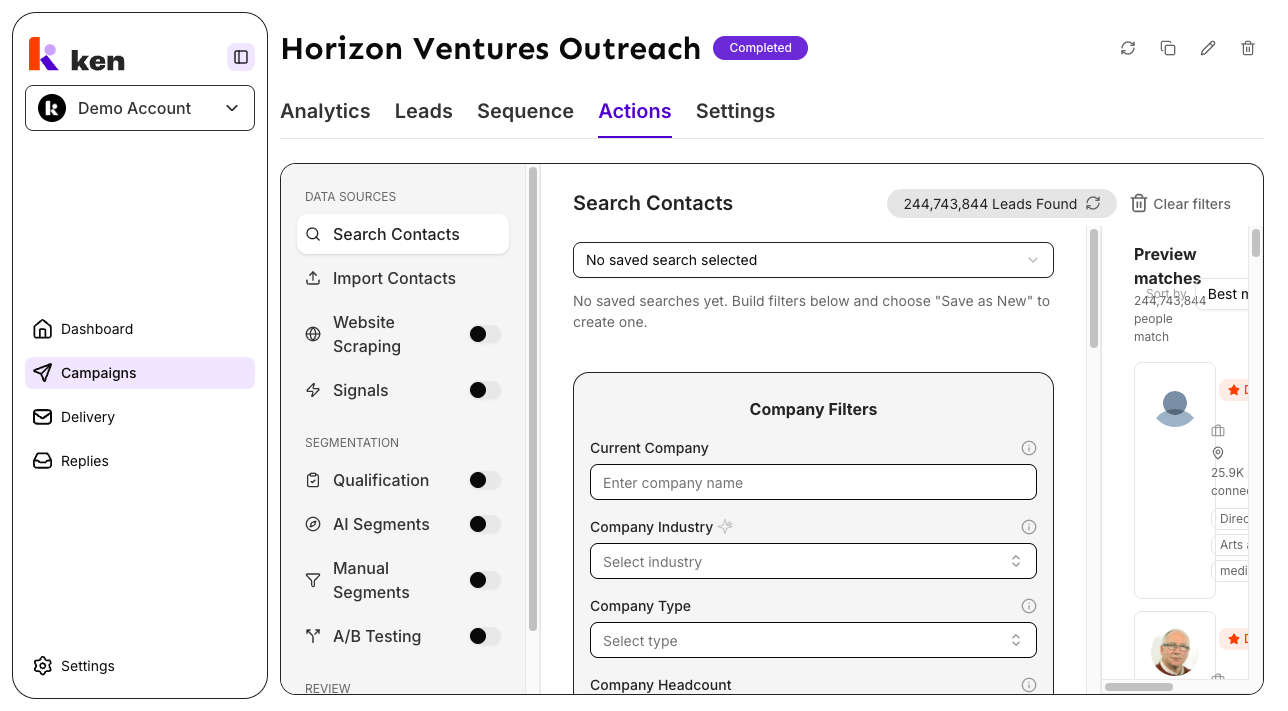
Step 2 - Follow the build
Once the build starts you see the full workspace:
- Left panel - chat. Ken sends messages as each stage completes, explains what it found, and asks for approval before moving on. Use the composer to send feedback or ask questions at any time.
- Right panel - preview. Shows the live output for the current step: files list, research summary, campaign plan, lead list, qualification results, segment assignments, sequence strategy, or email copy.
- Step rail (header center). Eight dots represent the 8 stages. The active step is highlighted blue. Click any dot to jump to that step's preview.
- Header right button. A contextual action that changes as the build progresses: "Open in Search", "Open in Qualification", "Open in Segmentation", or "Open in Sequence editor" - depending on the current stage. Once the build is complete this becomes Open campaign.
The 8 stages run in order:
| # | Step | What Ken does | |---|------|---------------| | 1 | Files | Reads your uploaded files and notes them for later stages | | 2 | Research | Scrapes your website and builds a company profile | | 3 | Planning | Confirms the offer, goal, and segment structure | | 4 | Ideal customer | Defines ICP filters and pulls a live lead list | | 5 | Qualify | Scores each lead against your fit criteria | | 6 | Segment | Groups qualified leads into focused sub-campaigns | | 7 | Strategy | Designs the email sequence and AI personalization per segment | | 8 | Email copy | Writes and reviews the full sequence |
Step 3 - Approve and refine
At the end of several stages Ken presents an approval card in the chat. It shows Ken's output and gives you selectable options such as "Approve" or "Request changes". Select your choice and click Send response. If you choose an option that requires input (for example "Request changes - I'll describe"), a text box appears for your notes.
On the Email copy step, the preview panel shows per-segment draft emails with an AI quality grade. Click Revise from my notes in the preview to send your notes back to Ken as a revision request.
Step 4 - Open the campaign
When Ken finishes all 8 stages, the header button changes to Open campaign. Click it to go directly to the populated campaign, where the saved search, contacts, qualification rules, segmentation, and email sequence are all ready.
How it works
When you click Create with AI, a Draft campaign is created immediately in the backend. This is what scopes the build to a real campaign record from the start - the build agent writes directly into that campaign as stages complete.
The build runs as an agentic conversation on the server. An orchestrating model carries the full conversation from onboarding through all 8 stages, calling each stage as a discrete sub-agent (Research, Planning, Ideal customer, Qualify, Segment, Strategy, Email copy). You see each sub-agent appear as a labeled row in the chat timeline as it runs.
Each stage is a specialized model call:
- Research - scrapes your website using a web mapper and page reader, then writes a structured company profile. If your site was scraped on a previous build, this stage is skipped automatically; Ken uses the stored profile instead.
- Planning - synthesizes the research and your onboarding answers into a campaign plan (offer, goal, and segment structure). No external calls; pure synthesis.
- Ideal customer - translates the plan into search filters, runs a live people search, and saves a named saved search to your workspace.
- Qualify - runs your qualification criteria against the lead pool and marks each lead as qualifying or not.
- Segment - assigns qualified leads to segments based on shared characteristics.
- Strategy - writes a sequence blueprint and AI personalization settings for each segment.
- Email copy - writes the draft email sequence per segment, scores each draft against a quality rubric, and revises up to three times until the score meets the threshold or you approve.
The conversation is durable - every Ken message and user reply is saved to the build session. If a stage fails mid-run, Ken catches the error and retries without losing completed work. If the connection to the model drops, Ken displays the error inline with a Try again button. Clicking Resume build on return to the page replays the saved event log so the chat appears as it was before you left.
Ken never sends emails, launches a campaign, or exports data during a build. The guardrail is architectural: the build agent has no tools for sending or exporting, so it cannot cross that line regardless of what is typed in the chat.
Memory from past builds is injected into relevant stages. If you have run a build before, Ken already knows how you like certain things structured (preferences from your feedback) and what your company looks like (knowledge from prior research). This means later builds are faster and more personalized without you needing to re-explain.
Troubleshooting and debugging
"Create with AI" button is disabled or grayed out
- Cause: the workspace has zero AI campaign credits remaining.
- Check: Settings - Billing - look at the "AI campaigns created" usage meter.
- Fix: upgrade the plan or purchase additional credits.
The composer shows "Finishing file uploads" and will not let me send
- Cause: one or more files are still uploading. The build will not start until all uploads settle.
- Fix: wait for the upload to complete. If it appears stuck, reload the page. Failed uploads show an inline error; remove the failed file and try again.
"Ken is thinking" appears for a long time with no progress
- Cause: the model connection timed out or the model gateway went silent.
- What happens: after 45 seconds of inactivity the build aborts the current attempt and tries the next available model provider automatically. If all providers fail, Ken shows the error "Ken lost the connection to the model and stopped this step. Please try again."
- Fix: click Try again to retry the current step from the last checkpoint. No completed work is lost.
"Generation stopped" with a Resume button
- Cause: you clicked Stop in the composer while Ken was generating, or the stream was interrupted.
- Fix: click Resume to continue from the same point. Your prior messages and Ken's completed stages are intact.
Error banner appears during a stage
- Cause: a recoverable stage error (for example, a lead search returned no results, or a tool call failed).
- Check: read the error text in the banner. If retryable, a Try again button appears.
- Fix: click Try again. If the error repeats, check whether the underlying problem is configuration-related (for example, the ICP filters are too narrow) and use the chat to tell Ken to adjust.
Resume shows a blank chat pane after returning to the build
- Cause: the start path seeded the session but the saved conversation was not replayed to the UI. This is a known edge case.
- Fix: reload the page and click Resume build again. The event log replay re-renders all prior messages.
The right-panel preview is empty for a step
- Cause: the stage for that step has not run yet, or the stage completed with no output (for example, zero qualifying leads).
- Check: look at the step rail - steps that have not run yet show as muted dots. If the stage ran, the chat will contain Ken's summary of what it found. Zero qualifying leads at the Qualify step means the ICP filters may be too strict; use the chat to ask Ken to broaden them.
"Open in Search" / "Open in Sequence editor" button takes me somewhere unexpected
- Cause: the skip buttons in the header are contextual shortcuts that link to the editor for the current step. They are present throughout the build, not just when the step is done.
- These are not errors - they let you jump to a specific editor at any time, even mid-build.
FAQ
Does Create with AI cost lead credits? Yes. The Ideal customer stage imports contacts into your campaign, which consumes lead credits. The number of contacts is set by the "How many contacts do you want?" field when you first create the campaign. You can also adjust the target in the Ideal customer step during the build. The credit cost is shown on the creation screen before you start.
Can I edit the output after the build finishes? Yes. Once the build completes and you click Open campaign, the campaign is a fully editable draft. You can change the saved search, edit the qualification rules, move leads between segments, rewrite email steps, and adjust the AI variables - the same as any manually created campaign.
What happens if I close the tab mid-build?
The build session is saved. Return to /campaigns/[id]/build and click Resume build to continue. Ken replays completed stages and picks up at the first incomplete one.
Can I run more than one build at a time? The builder tracks one active session per campaign. Opening a second tab to the same campaign build will offer the resume flow. Different campaigns each have their own independent build session.
Ken gave me low-quality research or wrong company details - what should I do? Type a correction in the chat at any time. For example: "That description is wrong - we focus on mid-market SaaS, not enterprise." Ken will incorporate your note. If the research stage already ran, you can ask Ken to adjust the plan that was built from it.
What file types can I upload? PDF, DOCX, TXT, MD, CSV, JSON, HTML. Files are processed with OCR if needed. Maximum one upload at a time; wait for the upload badge to show "Parsed" before starting the build.