
Campaigns overview
The campaigns list is your central view of every cold-email campaign in your workspace - use it to monitor status, track performance, and navigate to any campaign.
Overview
A campaign in Ken AI is a complete cold-email outreach program. It contains a target audience, a multi-step email sequence, AI-personalization settings, and the analytics for every send. One campaign runs from prospecting through sending, and you can pause, resume, or extend it at any stage.
The campaigns list is the first page you see after logging in. Open it at any time by clicking Campaigns in the left sidebar. The URL is /campaigns.
From this page you can:
- See the status and performance of all your campaigns at a glance
- Filter by status or tag to narrow the list
- Create a new campaign
- Rename or delete a campaign
- Continue an AI-assisted build that was started but not finished
- Click into any campaign to open its full detail view
Before you start
You need an active Ken AI workspace. The campaigns list is available to all workspace members. There are no additional permissions required to view the list.
To create campaigns you must be on a plan that includes campaign creation. If your plan is at its limit, the Create new campaign button will be blocked at checkout.
How to use the campaigns list
Navigate to the list
Click Campaigns in the sidebar. If you have no campaigns yet, you see an empty state with a Create new campaign button.
Read the table
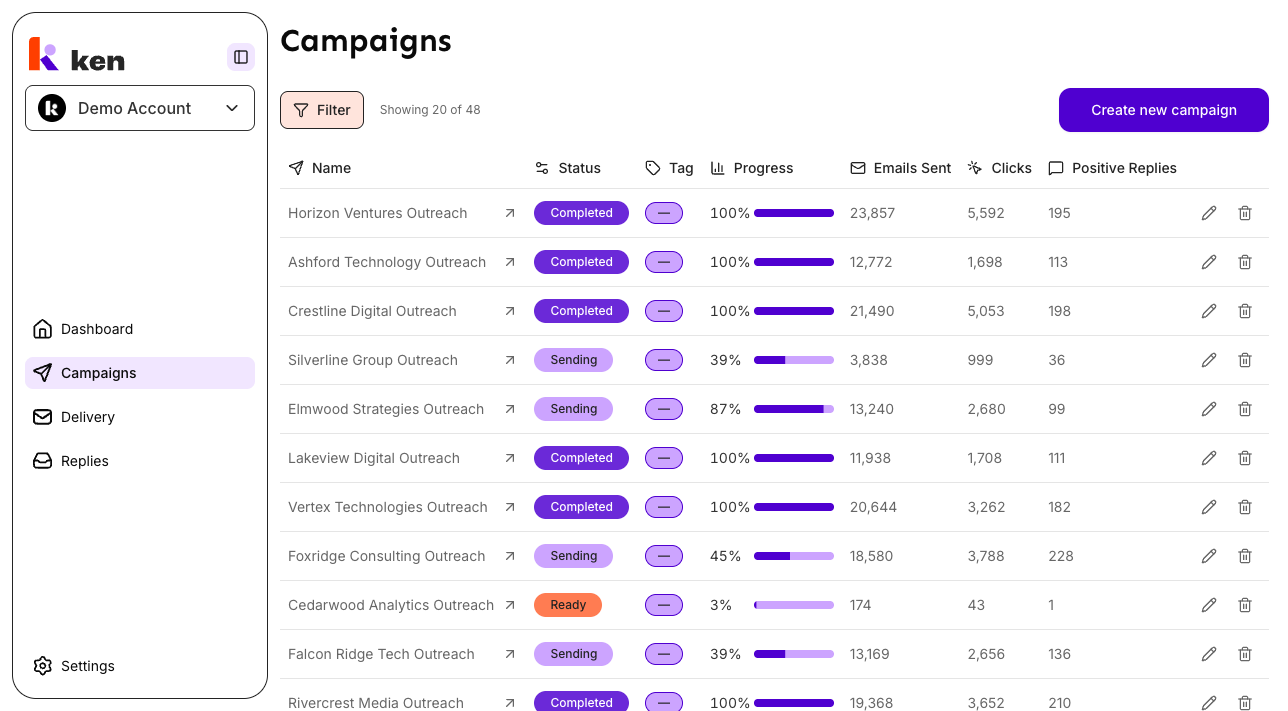
Each row in the table shows one campaign. The columns are:
| Column | What it shows | |---|---| | Name | The campaign name. Click the name or the arrow icon to open the campaign detail page. | | Status | A colored pill showing the current lifecycle state (see Status reference below). | | Tag | Any tags applied to the campaign. Untagged campaigns show a dash. | | Progress | Percentage of contacts that have been sent at least one email, shown as a number and a progress bar. | | Emails Sent | Total emails sent across all steps. A dash means the platform has not yet reported a value. | | Clicks | Total link clicks tracked by the platform's link-tracking system. A dash means no data yet. | | Positive Replies | Total replies classified as positive interest. |
The last column on each row holds row-level action icons (see Row actions below).
The counter below the Filter button shows how many campaigns match the current filter, for example "Showing 12 of 47".
Filter the list
- Click Filter near the top-left of the page.
- A panel opens with two dropdowns - Status and Tag.
- Choose a value from either or both dropdowns. The list reloads immediately.
- To remove all filters, click Clear all at the bottom of the filter panel.
A blue badge on the Filter button shows how many filters are active. The status options in the filter panel are: All, Draft, Processing, Ready, Sending, Paused, Completed, Error.
Filters are stored in the page URL, so you can bookmark or share a filtered view and it will reopen exactly as you left it.
Create a new campaign
Click Create new campaign in the top-right corner of the page. The campaign creation wizard opens. For a full walkthrough, see Creating a campaign.
Open a campaign
Click the campaign name in the Name column. The campaign detail page opens at the Analytics tab. The full tab bar is: Analytics, Leads, Sequence, Actions, Settings.
Continue an AI build
If you started an AI-assisted build but did not finish it, a play icon appears in the actions column of that row. Click it to return to the build conversation and pick up where you left off.
Rename a campaign
Click the pencil icon in the row's actions column. The name field becomes an inline text input. Type the new name and press Enter, or click away to save. Press Escape to cancel without saving.
Delete a campaign
Click the trash icon in the row's actions column. A confirmation dialog appears. Confirm to permanently delete the campaign. Deletion cannot be undone.
How it works
Status lifecycle. Every campaign moves through a fixed set of states: Draft, Processing (segmenting contacts and finding emails), Ready (contacts processed, waiting to start), Launching (sequence is being attached to the sending system), Sending (actively delivering emails), Paused, Completed, and Error. The status shown in the table comes directly from the backend - the frontend never re-derives it.
Processing sub-stages. When a campaign is in the Processing state, the platform may be running multiple stages simultaneously - for example segmenting contacts while also finding email addresses. Hovering over the Processing pill shows a popover listing the active sub-stages (such as "Segmenting", "Generating links"). This breakdown is pulled from the backend's processing status string and filtered with a deny-list of non-active tokens, so new sub-stages appear automatically without a frontend release.
Combined status pills. A campaign can show more than one pill at a time. The most common case is "Sending + Processing" - the backend reports Sending as the lifecycle state once sends are active, but the platform layer shows an additional Processing pill so you can see that background work (like personalization) is still running alongside the sends.
Infinite scroll. The list loads 20 campaigns at a time. When you scroll to the bottom, the next page loads automatically. No pagination buttons - just keep scrolling. The count below the Filter button always reflects the full filtered total, not just the loaded rows.
Filter URL state. The Status and Tag filters are stored in the URL as query parameters (?campaignStatus=...&tagId=...). Changing a filter immediately reloads the list from the first page. Because the state is in the URL, browser refresh, back-button navigation, and shared links all preserve the exact filter view you set.
Resumable builds. The platform checks each campaign for an in-progress AI build session. If one exists, a play icon appears on the row. Clicking it routes to /campaigns/[id]/build, which reloads the build conversation from where it stopped.
Clicks metric. The Clicks column counts human link clicks recorded by the platform's link-tracking layer. It does not use click data from the email-sending provider, which counts differently. A dash in this column means the campaign has not yet produced any tracked link events.
Troubleshooting & debugging
The list shows "No campaigns found" but campaigns exist.
- Check the Filter button for a blue badge. An active status or tag filter may be hiding all campaigns. Click Filter and choose "All" for both dropdowns, or click "Clear all".
- If no filters are active, the backend call may have failed. Refresh the page. A persistent failure shows an error banner with a "Try Again" button.
Status shows "Error" on a campaign.
- Open the campaign and check the header area for a toast or inline message. The header surfaces the backend's error reason verbatim.
- Common causes: a sending-provider rejection when attaching leads (for example, leads already in another sequence), an unsupported timezone, or a backend validation failure on launch.
- To restart, open the campaign and use the Restart button that appears in the header when the campaign is in Error state.
Status stays on "Processing" for a long time.
- Hover the Processing pill to see which sub-stages are still active.
- Long processing is normal for large contact lists (thousands of contacts) or when the email-finding service is under load.
- If processing has been stuck for more than several hours with no sub-stage activity, contact support with the campaign ID.
"Failed to load campaigns" error toast on page load.
- This is usually a temporary backend or network issue. Refresh to retry.
- If the error persists, check whether other pages in the dashboard are loading. A persistent failure across all pages indicates an infrastructure issue rather than a per-campaign problem.
"Failed to load campaign tags" inside the filter panel.
- The tag list is loaded separately when you open the filter popover. If it fails, a "Failed to load tags - Retry" message appears in place of the Tag dropdown. Click Retry to reload.
Rename does not save.
- If you press Enter and the name reverts, the rename action may have failed silently. Check for a toast error at the bottom of the screen.
- If no toast appears, refresh the page. Stale Server Actions (after a deploy) can cause rename calls to return a 404. The page will prompt you to reload.
Progress shows 0% for a Sending campaign.
- Progress tracks the percentage of contacts that have received at least one email. A Sending campaign that just launched will show 0% until the first batch of sends is processed.
- For campaigns with sharded segments, the progress value is a rollup across all segments. Check the Leads tab for per-segment breakdowns.
Clicks show 0 or a dash despite visible engagement.
- Clicks are sourced exclusively from the platform's link-tracking system, not from the email provider's click counts. If your emails do not use tracked links, this column will always show 0 or a dash.
FAQ
Can I filter by multiple statuses at the same time? No - the Status filter is a single-select dropdown. To see campaigns across multiple statuses, clear the filter and scroll through the full list.
What is the difference between "Processing" and "Launching"? Processing means the platform is preparing your contacts - segmenting them, finding email addresses, and running personalization. Launching means the contact list is ready and the platform is attaching it to the sending system. Launching is a short transition state; you will usually see it briefly before a campaign moves to Sending.
Why doesn't the Launching status appear as a filter option? The backend's filter for "Sending" includes campaigns that are in the Launching sub-state. Selecting "Sending" in the filter panel returns both Sending and Launching campaigns.
Can I restore a deleted campaign? No. Deletion is permanent. Before deleting a campaign with historical send data, consider pausing it instead to preserve the analytics record.
How do I duplicate a campaign? Open the campaign detail page and use the Duplicate option in the Actions panel. Duplication is not available from the campaigns list directly.
How often does the list data update? The list is loaded fresh on each page visit. Status badges and metrics do not auto-refresh in the background. Reload the page or navigate away and back to get the latest values.