
Approval, handoff and resuming a stuck build
How to answer Ken's in-chat questions during a build, request client sign-off on a real email preview, and recover a build that stalls or shows an error.
Overview
The "Create with AI" build has two distinct approval concepts. During the build itself, Ken occasionally pauses to ask you a structured question in the chat - you answer with the approval card and Ken continues. Once the email copy is ready, you can generate a client approval draft: a real mini-campaign on up to 20 live contacts that Ken builds and AI-processes, then shares via a no-login magic link so your client can approve or request line-level changes.
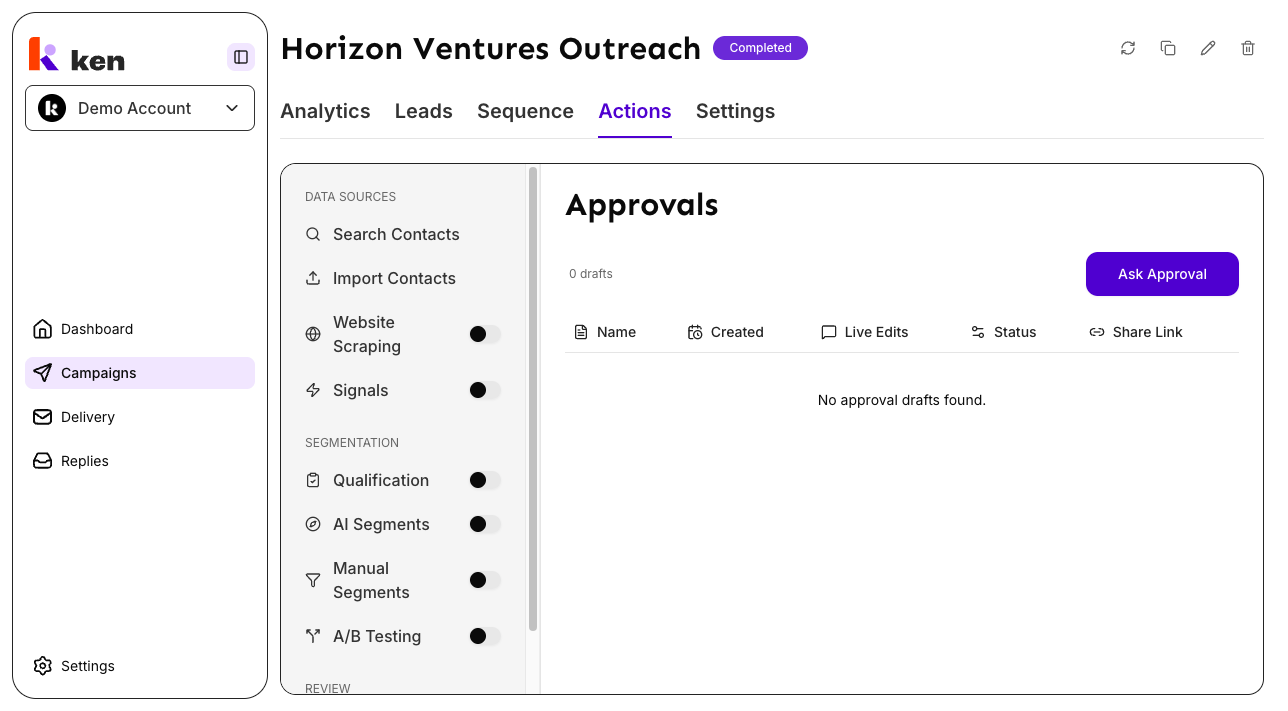
Both flows live at /campaigns/build (the active build page). The client approval panel, which you use after the build finishes, lives under the Actions tab of any campaign, in the Review section, under "Approvals."
Before you start
- You must have an active "Create with AI" build in progress to see the in-chat approval card.
- To request a client approval draft, the campaign must already exist in the system (a Draft campaign created by the "Create with AI" flow). At least one saved search or CSV of contacts is also required, unless you plan to sample leads from an existing campaign.
- No special role is required beyond standard access to the campaign.
How to answer Ken's in-chat questions
During a live build Ken sometimes pauses mid-stage to ask a structured question - for example, confirming an offer, choosing a targeting direction, or approving a segment plan. When this happens an approval card appears in the chat, just below the message thread.
- Open
/campaigns/build. If a build is in progress, find the approval card at the bottom of the chat area. - Read Ken's question at the top of the card.
- Select one of the radio-button options. If an option is labeled "Request changes" (or similar), a text box appears - describe what you want changed.
- If the options do not fit, select "Type your own response" and type freely in the text box that appears.
- Click "Send response." The card locks and Ken picks up from your answer.
- If you want to skip the question and let Ken proceed with its default choice, click "Skip."
The card clears automatically once Ken acknowledges your answer and resumes work.
How to request and share a client approval draft
This is separate from the in-chat flow. It generates a real preview campaign - 20 live contacts run through the full AI pipeline - and produces a shareable magic link.
Step 1 - Open the Approvals panel
- Navigate to the campaign in question (e.g.
/campaigns/123). - Click the "Actions" tab in the campaign header.
- In the left sidebar, under the "Review" group, click "Approvals."
Step 2 - Create a new draft
- Click "Ask Approval" (top-right of the Approvals panel).
- The "Ask for client approval" form opens.
- Under "Contact source," choose one of the three options:
- "Saved search" - resolves contacts from a saved people search. Select the specific search from the dropdown.
- "CSV upload" - upload a CSV file, then map its columns to the required fields.
- "From campaign leads" - samples contacts already in another campaign.
- In "Number of contacts," enter how many contacts the preview should cover. The default is 20; the maximum is 100.
- Click "Ask Approval" to submit.
A success message confirms that the draft is building and will show as "Processing."
Step 3 - Share the magic link
- The Approvals panel lists all drafts for this campaign. Each row shows the draft name, creation date, live feedback counts, current status, and a "Share Link" column.
- Wait for the status badge to change from "Processing" to "Ready" - the panel auto-refreshes every five seconds while any draft is in an active state.
- Once ready, click the copy icon in the "Share Link" column to copy the magic link to your clipboard.
- Send the link to your client. No login is required on their end.
Step 4 - Review client feedback
The client uses the magic-link page to mark each email node as approved or to request changes, and can add line-level comments. Back in your Approvals panel the "Live Edits" column tracks counts in real time: green dots for approved, orange for change requests, blue for comments.
To see the full detail, click any draft row to open the draft detail view at /approvals/drafts/{id}.
Step 5 - Hand off to launch
Once the client submits their feedback (status changes to "Approved" or "Not Approved"):
- If "Approved," open the campaign and proceed to the sequence and launch steps.
- If "Not Approved," review the requested changes, update the campaign, and create a new approval draft to repeat the cycle.
At any point the "Open campaign" button in the build workspace top-right navigates directly into the populated campaign once the build is complete.
How it works
In-chat approval card
The approval card is rendered when the build orchestrator emits an ask_question event. Ken poses a structured question with pre-set options and an optional free-text mode. The answer is serialized to a plain string and sent back over the session back-channel as a user turn. The card clears when the orchestrator transitions back to a working state. On a browser resume or reconnect, the last unanswered question is replayed from the session event log so the card reappears correctly.
Client approval drafts
When you click "Ask Approval," Ken:
- Allocates a draft number and mints a cryptographically random magic link token, then returns immediately - the draft page shows "Processing" straight away.
- In the background, resolves the contact sample from the saved search or CSV, deep-copies the campaign (segments, prompts, AI configurations, sequence, and all steps), and imports the contacts.
- Publishes a snapshot that freezes the reviewable email content structure and mints the valid node keys the client can interact with, then flips the draft to "Ready."
- Starts the campaign workflows - qualify, segment, personalize, rewrite - with a minimum batch size of 1 so the 20-contact sample processes immediately rather than waiting for the production threshold of 1,000 contacts.
The result the client sees is a genuine AI-processed preview, not a mockup. The production campaign will match what is signed off.
Magic link tokens are 32-byte cryptographic random values. They do not expire. If you share a link with the wrong person, you can rotate it: in the Approvals panel, find the draft and use the rotate action to invalidate the old link and generate a new one.
A 10-minute idempotency window prevents duplicate drafts: if you click "Ask Approval" twice in quick succession for the same campaign and saved search, you get the same in-progress draft instead of two separate builds.
If the contact source returns no usable results, or if any stage of the background build fails, the draft is immediately marked "Failed" and the duplicated campaign is cleaned up - no orphaned data is left behind.
Troubleshooting and debugging
The approval card appears but the build freezes after I answer The turn status should flip from "awaiting_user" back to a working state within a few seconds. If Ken stays silent, scroll down - a retryable error banner may have appeared below the chat. Click "Try again." If no banner is visible, the session may have lost its connection; reload the page and the build will resume from the last checkpoint.
The approval card appears but "Send response" stays disabled The button requires a selection. Make sure a radio option is selected. If the option you selected requires a text explanation (e.g. "Request changes"), the text box must also be non-empty before the button enables.
"Ask Approval" button is missing from the Approvals panel The Approvals panel is in the "Actions" tab, under "Review - Approvals" in the left sidebar. If the sidebar item is not visible, confirm you are viewing the campaign's Actions tab, not another tab such as Analytics or Leads.
Draft stays on "Processing" for more than a few minutes This is uncommon. Two root causes to check:
- The saved search has invalid or empty filters. Invalid filters are a permanent error - the system does not retry them and the draft will flip to "Failed." Open the saved search and confirm it has at least one valid filter before creating a new draft.
- The AI pipeline is backed up. A contact sample that is too broad can slow processing. Try reducing the "Number of contacts" field to 20 or fewer and create a fresh draft. If the issue persists, the draft will eventually flip to "Failed" with a reason shown on the detail page.
Draft shows "Failed"
Open the draft detail at /approvals/drafts/{id} to read the failure reason. Common causes:
- The saved search filter produced zero usable contacts after deduplication. Check that the contacts in the saved search have both a valid name and company data - contacts missing either field are dropped by the importer, which can leave the imported count at zero even when the search returns rows.
- The background build queue was full at the time of creation. The error message will say to retry once the system has capacity.
- Create a new draft to retry; failed drafts cannot be restarted.
The "Share Link" copy button is grayed out The copy button is only enabled when the draft is in "Ready," "Approved," or "Not Approved" status. Drafts in "Processing" or "Failed" status do not have a shareable link yet or never completed successfully.
Client says the magic link is not working (404) The token may have been rotated. If you rotated the link after sharing it, the old URL is immediately invalidated. Share the new link from the "Share Link" column.
"Generation stopped" banner appears in the build chat This means you or the system stopped the build explicitly. Click "Resume" in the banner to continue from the last saved checkpoint.
Error banner appears with "Try again" button A recoverable stage error occurred. Click "Try again" to resume from the checkpoint. If the error recurs on the same stage, check whether the backend is reachable and whether the campaign's saved search is returning results.
Error banner appears with no retry button The error is not recoverable from the current session. Note the error message and stage, then reload the page. On reload the build page checks for an existing session and resumes if one exists.
FAQ
Can my client leave comments without approving or rejecting? Yes. The magic-link page lets clients mark individual nodes as approved, request changes, or leave notes and line-level comments without submitting a final verdict. You see live feedback counts in the "Live Edits" column. The draft only locks (moves to "Approved" or "Not Approved") when the client clicks the final submit.
Can I create multiple approval drafts for the same campaign? Yes. Each draft is independent. The Approvals panel lists all drafts for the campaign. Multiple rounds of changes are supported by creating a new draft for each round.
Will the approval draft use the same AI models as the real campaign? Yes. The draft resolves model configurations from the live provider priority chain, not from a static copy. If the chain order changes before the draft builds, the draft uses the updated order.
What is the maximum number of contacts for an approval draft? 100. The default is 20. A smaller sample builds faster and is usually sufficient for a client preview.
Does creating an approval draft count against my usage credits? Contact your account manager to confirm how approval draft processing is billed for your plan.
Can I skip the client approval step and go straight to launch? Yes. The approval draft is optional. Once the "Create with AI" build finishes, click "Open campaign" in the build workspace to go directly to the campaign and start the launch process without sending a client preview.