
Replies: your master inbox
A unified triage surface that turns every cold-email reply into an actionable queue - so CSMs can clear their inbox to zero instead of hunting through a flat message list.
Overview
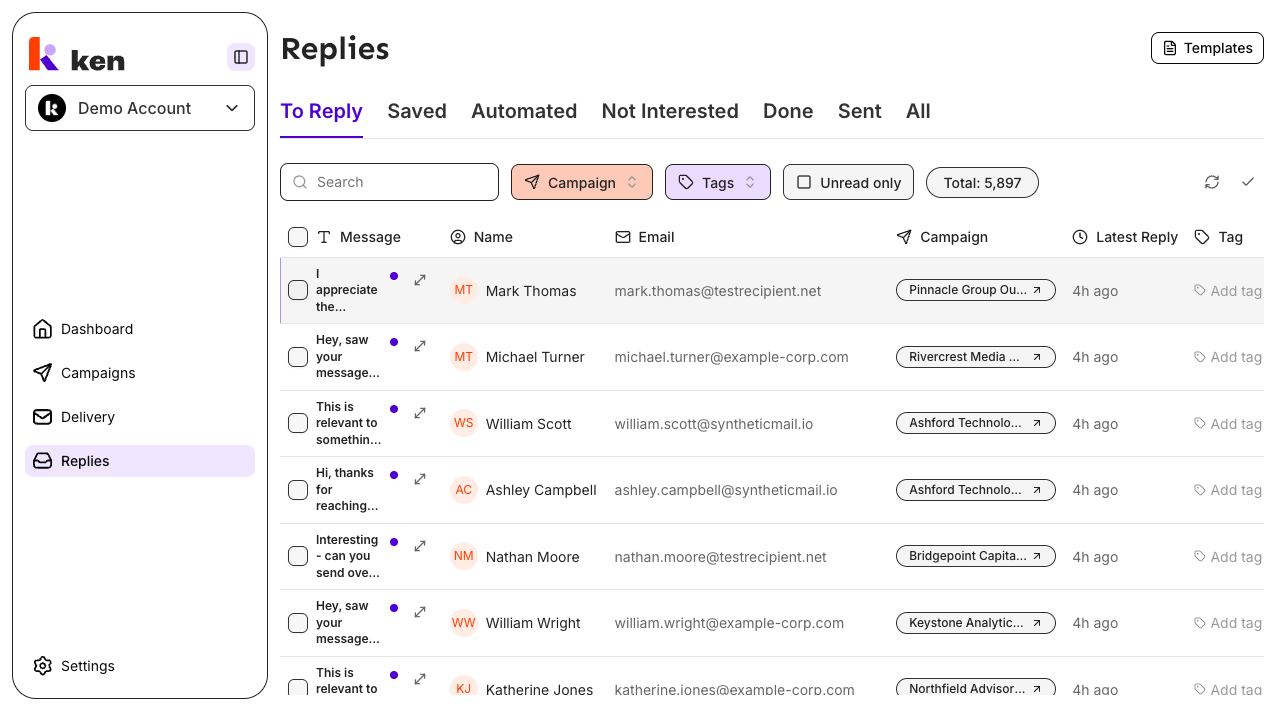
The Replies inbox is the central surface for handling every response that comes back from your cold-email campaigns. Replies are automatically sorted into tabs by classification, so you always know what needs your attention first and what can wait.
Open it by clicking Replies in the left sidebar. The page lives at /replies.
The inbox shows replies across all campaigns for your workspace. Each row shows the prospect's name, company, email subject, a preview snippet, the date, and any tags you have assigned.
Before you start
- You must be a member of an active workspace.
- Replies populate automatically once a campaign is running and prospects start responding. There is nothing to configure before replies arrive.
- To reply or forward, at least one inbox (sending account) must be connected under Deliverability.
How to triage replies
Step 1 - Open the right tab
The inbox has seven tabs along the top:
| Tab | What it shows | |-----|---------------| | To Reply | Replies that need a human response - interested prospects, objections, and wrong-contact notes. This is your working queue. | | Saved | Replies you have bookmarked. Saved replies stay here even after you mark them Done. | | Automated | Detected out-of-office and bot replies. Review these to confirm nothing real slipped through. | | Not Interested | Replies you have explicitly marked as not interested. | | Done | Replies you have marked as done (archived). | | Sent | All outbound messages - campaign sends and manual replies - showing the prospect you reached. | | All | Every reply, regardless of tab or status. Useful for searching across everything. |
Start on To Reply at the beginning of each session.
Step 2 - Open a thread
Click any row to open the conversation thread panel on the right. The thread shows the full back-and-forth: every campaign email the platform sent and every reply the prospect wrote, in chronological order. The newest message is expanded by default; older messages are collapsed to one-line previews. Click any collapsed message to expand it.
Each message in the thread carries a small label - Campaign (an automated sequence send) or Reply (a human-written message in either direction).
Step 3 - Reply, forward, or triage
From the thread panel header, use the action icons to handle the reply:
- Reply - Opens the reply composer, pre-filled with the subject and previous context. Send with Cmd+Enter (Mac) or Ctrl+Enter (Windows). To send and mark done in one step, use Cmd+Shift+Enter.
- Forward - Forwards the current message to another address.
- Mark as done / not done - Moves the reply to the Done tab (or restores it if already done).
- Save / unsave - Bookmarks the reply so it persists in the Saved tab.
- Remind me later - Sets a reminder date on the reply and saves it. The reply resurfaces in To Reply when the date arrives.
- Mark as read / unread - Toggles the read state. Unread rows show a blue dot and bold text.
- Tag - Opens the tag picker to assign or remove labels.
- Contact details - Opens the prospect's profile.
Right-click any row in the list to access the same actions via the context menu.
Step 4 - Use the keyboard to move fast
The inbox is keyboard-first. These are the most useful shortcuts:
| Key | Action | |-----|--------| | J / Arrow Down | Next reply | | K / Arrow Up | Previous reply | | E | Mark done / not done (toggle) | | Shift+E | Always mark not done | | S | Save / unsave | | U | Mark read / unread | | R or C | Open reply composer | | F | Forward | | T | Add / remove tag | | H | Remind me tomorrow | | X | Select / deselect row | | Shift+J / Shift+K | Extend selection down / up | | / | Search replies | | Escape | Clear selection or close thread |
Hover over any row and press a key - the keyboard cursor follows the mouse, so you can point and act without clicking first.
Step 5 - Bulk actions
Check multiple rows using X to select or the checkboxes on the left. A toolbar appears at the top of the list with options to mark all selected replies as done or not done in one action.
The bulk "mark done" button does the right thing on every tab: on the Done tab it restores selected replies; on mixed tabs (All and Saved) it archives the non-done ones and restores the done ones; everywhere else it marks everything done.
Inbox zero
When the To Reply tab is empty and no filter or search is active, the inbox shows the "Inbox zero!" celebration screen. This only fires when you have genuinely cleared the queue - it will not appear if a search filter is what emptied the view.
How it works
Replies flow into the platform from the email sending infrastructure. Each reply is automatically classified server-side into one of four categories: Interested, Not Interested, Automated, or Unclassified. The frontend sends a compact status token to the backend (for example, to_reply), and the backend expands that into the full classification set - so the rules for what counts as "To Reply" live in one place and never drift between what you see and what the backend knows.
Each tab is a live filtered view of the same reply list. The Saved tab is the one deliberate exception to the filter pattern: a saved reply is never filtered out by its done state, so bookmarks survive being marked Done and remain visible regardless of whether you have processed them.
The thread panel reconstructs the full conversation from three segments: messages before the current reply, the current reply, and messages after it. They are sorted by date, with equal-timestamp items kept in server order. Each message's gutter label - Campaign or Reply - is derived from the EmailBison message type. Only messages the platform dispatched as part of an automated sequence earn the Campaign label; everything else, including manual sends and both tracked and untracked inbound replies, is labeled Reply. This bias is intentional: it is far safer to under-claim automation than to mark a hand-written email Campaign.
The Sent tab shows who you reached, not which inbox sent it. For outbound rows the name and email columns show the prospect you emailed (the recipient), not your own sending address - the same convention Gmail uses.
Read receipts appear on your outbound messages inside the thread. Each outbound message that has been opened shows an "Opened N times" indicator. Hovering that indicator loads a breakdown of each open event: the timestamp, the device class (desktop, mobile, tablet), and the email client. Opens triggered by Apple Mail privacy protection or Google proxy prefetch are shown but clearly labeled as such, so the human count is honest.
Unread replies show a small blue dot next to the expand icon and bold text. The dot disappears as soon as you open the thread.
Troubleshooting & debugging
Symptom: The To Reply tab is empty but I know replies came in
- Check the All tab to confirm replies are loading at all.
- The reply may have been auto-classified as Automated or Not Interested. Check those tabs.
- If a campaign filter is applied (campaign selector in the toolbar), it will narrow the list. Clear the filter.
- If the inbox was cleared by a teammate, replies are in the Done tab.
Symptom: A reply row shows but clicking it opens a blank thread panel
- The thread request calls the backend. If the panel is blank rather than loading, there may be a network timeout. Reload the page and try again.
- If the issue recurs for a specific reply, note the reply's message ID (visible in the URL or network tab) and check the backend logs for a 404 or 403 on
/v1/inbox/threads/{messageId}/conversation-thread.
Symptom: Reply action buttons are unresponsive (Mark done, Save, etc.)
- These actions call PATCH endpoints on the backend. A stale page after a deploy can cause 404s on Server Actions. The correct fix is to reload the tab - the page will fetch the current Server Action version. If the error recurs across reloads, check that the backend reply endpoints are healthy.
Symptom: "Opened N times" is higher than expected
- Apple Mail and Gmail proxy/prefetch opens inflate the raw count. Hover the indicator to see the breakdown. Events labeled "Apple Mail privacy" or "Google proxy / prefetch" are prefetch hits, not real reads. The human count excludes these and is shown separately.
Symptom: The Sent tab shows my own email address instead of the prospect
- This is a bug or a data mapping gap. The Sent tab should always show the prospect (the
toaddress), not the sending address. Check that the reply row'stypein the backend isSent(the campaign-sequence type). Manual sends and any othertypevalue resolve the counterparty differently.
Symptom: A reply sits in To Reply after I marked it Done
- Refresh the list. The row is removed from To Reply immediately on a successful PATCH, but a failed request leaves the row in place. Check the browser console for network errors on the archive endpoint.
Symptom: The Saved tab does not show a reply I bookmarked
- Confirm the reply is actually saved (the bookmark icon should be filled). The Saved tab applies no archived filter - a Done reply that is saved should still appear there. If it does not, reload and check again. If it persists, check the backend for the
isSavedflag on that message.
Symptom: Keyboard shortcuts do not work
- Shortcuts are active when focus is on the list or thread panel. If a modal, dropdown, or the search field is open, keys are captured by that element instead. Press Escape to dismiss overlays, then retry.
FAQ
Q: Can I reply from a different inbox than the one the campaign used? The reply composer resolves the "From" address from the last outbound message in the thread - the inbox that most recently emailed that prospect. You can change the sender in the composer using Cmd+Shift+F (Mac) or Ctrl+Shift+F (Windows) to open the From picker.
Q: Does marking a reply Done remove it from To Reply permanently? Yes, Done moves it to the Done tab and removes it from To Reply. You can restore it at any time with Shift+E or by right-clicking and choosing "Mark as not done."
Q: What is the difference between Save and marking a reply Done? Save is a bookmark - it keeps the reply in the Saved tab regardless of its done state. Done is a processing state - it moves the reply out of the actionable tabs. You can do both at the same time: save a reply to keep a bookmark, then mark it done to clear it from your queue.
Q: Why do some replies land in Automated when they look real? The Automated classification comes from the backend. It is based on signals in the reply content and metadata. If a reply is misclassified, open it and use the "Mark as not automated" action in the thread header or row context menu. That sends a dedicated reclassification request to the backend and moves the reply out of Automated. The classification rules are maintained server-side.
Q: Can I filter replies by campaign?
A campaign filter control is wired in the toolbar and sends the campaign_id parameter to the backend. If replies are not narrowing when you select a campaign, the backend filter may not be fully active yet - use the All tab and search by subject or name as an alternative.
Q: How many times was my reply actually read? The "Opened N times" indicator on your outbound messages in the thread shows the human-verified open count. Hover it to see each open event with its timestamp and device. The detailed breakdown also shows any Apple Mail or Google proxy hits that were excluded from the human count, along with the raw total - so you can see both numbers and judge for yourself.