
Inbox keyboard shortcuts
Triage and respond to campaign replies entirely from the keyboard - no mouse required.
Overview
Ken's Replies inbox includes a full keyboard layer modeled on Superhuman. Every shortcut works from the home row: move through conversations with J and K, mark done with E, save with S, open a reply with R, and send with Cmd+Enter. A built-in cheat sheet (press ? at any time) lists every shortcut, organized by section.
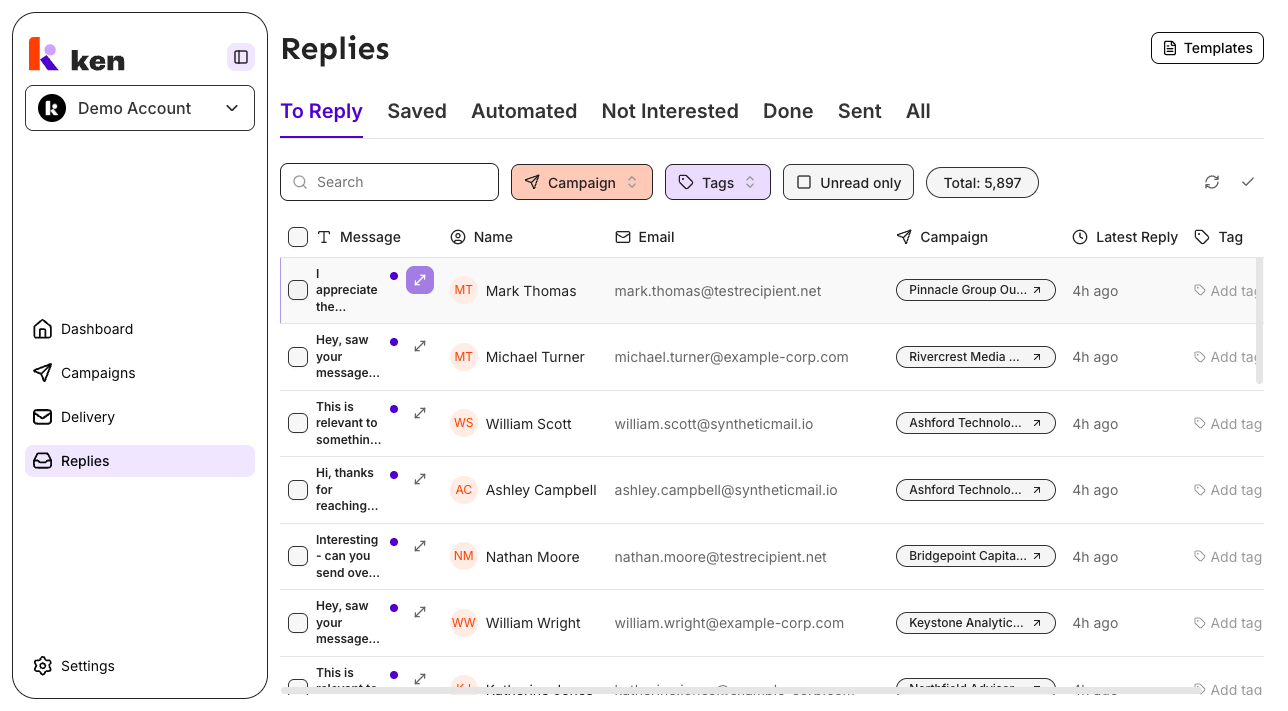
Find the Replies inbox in the left sidebar under Replies, or press G then R from anywhere in the app.
Before you start
- Keyboard shortcuts are available to all users on all plans.
- Shortcuts never fire while you are typing in a text field, the reply composer, or any other editable area - you cannot accidentally archive a conversation mid-sentence.
- On Windows and Linux, read "Cmd" as "Ctrl" throughout this article. The shortcuts behave identically.
How to use inbox keyboard shortcuts
Open the cheat sheet
Press ? from anywhere on the Replies page (while focus is not inside a text field) to open the full keyboard shortcuts reference. Press ? again, or press Esc, to close it.
Navigate the conversation list
Use these shortcuts while the conversation list is in focus (no thread panel open, focus not inside an input).
| Action | Key |
|--------|-----|
| Next conversation | J or Arrow Down |
| Previous conversation | K or Arrow Up |
| Open conversation | Enter |
| Jump to top of list | Cmd + Arrow Up |
| Jump to bottom of list | Cmd + Arrow Down |
| Scroll down | Space |
| Scroll up | Shift + Space |
| Search replies | / |
Work conversations
These shortcuts act on the focused (highlighted) conversation in the list, or on the open thread when a thread panel is showing.
| Action | Key |
|--------|-----|
| Mark done / not done (toggle) | E |
| Always mark not done | Shift + E |
| Mark read / unread | U |
| Save / unsave | S |
| Remind me tomorrow | H |
| Add or remove tag | T |
Reply and compose
Open the reply composer on the current thread, then use these shortcuts to write and send.
| Action | Key |
|--------|-----|
| Reply | R |
| Compose reply (same as Reply) | C |
| Forward | F |
| Send | Cmd + Enter |
| Send and mark done | Cmd + Shift + Enter |
| AI assistant | Ctrl + I |
| Discard draft | Cmd + Shift + , |
Navigate inside a thread
When a thread panel is open, these keys move between messages.
| Action | Key |
|--------|-----|
| Next message | N |
| Previous message | P |
| Expand message | O |
| Expand all messages | Shift + O |
| Close thread / go back | Esc |
Note: while the thread panel is open, only
JandKremain active from the list layer. They move focus to the next or previous conversation and automatically swap the open thread. All other list shortcuts are owned by the thread handler while a panel is showing.
Focus composer fields
When the reply composer is open, use these shortcuts to jump between header fields without reaching for the mouse.
| Action | Key |
|--------|-----|
| Focus To field | Cmd + Shift + O |
| Focus Cc field | Cmd + Shift + C |
| Focus Bcc field | Cmd + Shift + B |
| From picker | Cmd + Shift + F |
| Focus message body | Cmd + Shift + M |
Select multiple conversations
| Action | Key |
|--------|-----|
| Select conversation | X |
| Add to selection (down) | Shift + J |
| Add to selection (up) | Shift + K |
| Select from here down | Cmd + A |
| Select all | Cmd + Shift + A |
| Clear selection | Esc |
Text formatting (inside the composer)
These shortcuts are handled by the text editor itself and apply while your cursor is inside the message body.
| Action | Key |
|--------|-----|
| Bold | Cmd + B |
| Italic | Cmd + I |
| Underline | Cmd + U |
| Strikethrough | Cmd + Shift + X |
| Numbered list | Cmd + Shift + 7 |
| Bulleted list | Cmd + Shift + 8 |
| Quote | Cmd + Shift + 9 |
| Insert link | Cmd + K |
| Indent | Cmd + ] |
| Outdent | Cmd + [ |
How it works
Every shortcut in Ken is declared once in a single catalog. The same catalog that handles keystrokes at runtime also powers the in-app cheat sheet (press ?) and the command palette search (press Cmd+K and type a shortcut name). This means the cheat sheet can never show a key that does not actually work.
The shortcut system divides work across three scopes based on where focus is:
- List scope - active when you are browsing the conversation list and no thread is open. Handles navigation (J/K), selection (X), triage (E/U/S/H), and search (/).
- Thread scope - active when a thread panel is open. Handles reply (R/C), forward (F), message navigation (N/P), and tagging (T).
- Composer scope - active when the reply composer is open. Handles send (Cmd+Enter), field focus, and draft discard.
E and Shift+E behave differently by design. A bare E toggles done state: press it once on an open conversation to mark it done, press it again to unmark. Shift+E always marks a conversation as not done, regardless of its current state. This matches Superhuman's behavior.
C (Compose) opens the reply composer on the current thread. In a standard email client, Compose would open a blank new message - but because this inbox only shows replies to outbound campaigns, there is nothing net-new to compose. So C is an alias for R (Reply).
The Discard draft shortcut is triggered by the physical Comma key rather than the character the key produces. On some keyboard layouts, Cmd+Shift+, produces < instead of ,. The handler matches the physical key so the shortcut works on all keyboard layouts. The cheat sheet still shows , because that is the keycap you see.
G prefix navigation is separate from the inbox shortcuts. Press G then a letter to jump between pages: G R for Replies, G D for Dashboard, G C for Campaigns, and so on. After pressing G, you have one second to press the second key. During that one-second window, inbox triage keys (E, U, S, and others) are suspended so a G followed by E navigates to Email Delivery rather than archiving a conversation.
Troubleshooting & debugging
Shortcuts do nothing when I press them
- Confirm focus is on the Replies page (not inside an input, search box, or the reply composer). Shortcuts are deliberately disabled when typing to prevent accidental actions.
- If you are mid-way through a
Gprefix sequence and pressedGbut not the second key, the inbox shortcuts pause for one second. Wait a moment and try again. - Check that the correct scope is active.
J/Kwork from the list.R,N/P,Orequire a thread to be open.
E marks done when I expected it to mark not done (or vice versa)
E is a toggle. If the conversation is already marked done, pressing E marks it not done. If you want to force not-done state regardless of current status, use Shift+E.
R or C opens the composer but the wrong thread is in focus
Use J/K to move to the correct conversation first, then press R. The thread panel must show the right conversation before you compose.
Cmd+K inserts a link instead of opening the command palette
Cmd+K opens the command palette globally, but when your cursor is inside the reply composer body, the text editor intercepts it and inserts a link instead. Move focus out of the composer first (press Esc to close it, or use Cmd+Shift+O to jump to the To field), then press Cmd+K.
The Discard shortcut (Cmd+Shift+,) does not fire
This shortcut matches the physical Comma key. On keyboards where the Comma key is in a non-standard position, it may not match. Try using the discard button in the composer toolbar as a fallback.
? does not open the cheat sheet
? requires Shift+/ on most keyboards. If focus is inside any editable area (input, textarea, or the composer), ? types normally. Click outside those areas first. If another modal or dialog is already open, ? is suppressed to avoid layering two dialogs on top of each other.
G R navigates to Replies but I expected a different action
G followed by any mapped letter navigates the app. G R goes to Replies. If you intended to press just R (open the reply composer), avoid pressing G beforehand. A second G press inside the one-second window cancels the sequence without re-arming it, so mashing G G is a safe way to cancel an accidental G.
FAQ
Do shortcuts work the same on Windows?
Yes. Any shortcut that uses Cmd (shown as ⌘ in the cheat sheet) also works with Ctrl on Windows and Linux. The only exception is the AI assistant shortcut, which is Ctrl+I on all platforms - it does not respond to Cmd+I because that combination is reserved for the information panel toggle.
Can I customize the shortcuts?
No. The shortcuts are fixed and match Superhuman's key layout to give teams a consistent, learnable experience. Custom bindings are not supported.
Why does C open a reply instead of a new blank message?
The Replies inbox only shows responses to outbound campaigns - there are no net-new messages to compose. C opens the reply composer on the currently focused thread, the same as R. This matches the action the key performs in Superhuman's own inbox when there is no outgoing context.
What is H for?
H sets a "Remind me tomorrow" reminder on the focused conversation and saves it at the same time. It mirrors Superhuman's remind shortcut. For full reminder options (custom dates or preset intervals), use the row context menu or the thread header.
Are shortcuts available on mobile?
No. Keyboard shortcuts require a physical keyboard. The Replies inbox on mobile devices does not activate the shortcut layer.
How do I see all shortcuts without memorizing them?
Press ? from the Replies page to open the full reference sheet. You can also press Cmd+K to open the command palette and type any shortcut name - the palette searches across all shortcut labels and keywords.