
Replying and forwarding
How to send a reply or forward an email from the Replies inbox, with personalization variables already resolved to the real prospect's values.
Overview
The reply composer is the inline writing box that opens beneath any conversation thread in the Replies inbox. It handles three actions in one surface: reply to the sender, reply all (when there are additional recipients), and forward to a new address. The same send button relabels itself - "Reply", "Reply All", or "Forward" - so the active mode is always obvious.
The composer also surfaces every personalization variable from your campaign sequencer - lead fields, AI-written lines, and per-sender signatures - already resolved to the real values for this specific prospect and sending inbox. You insert the actual name, not a {token}.
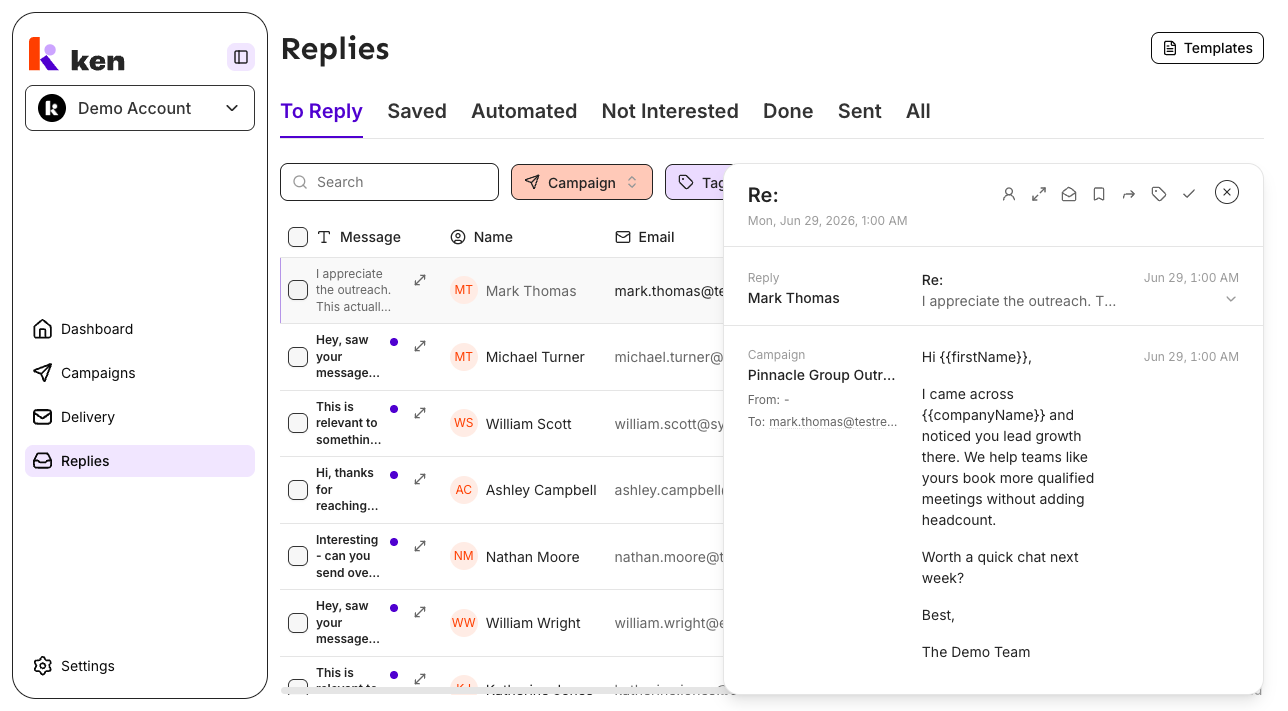
Find it at: Replies (the left sidebar item at /replies). Click any row to open the thread panel, then click Reply at the bottom.
Before you start
- You need at least one sending inbox connected to your workspace.
- The composer is available to any user with access to the Replies page. There are no additional role gates.
- Variables (lead fields, signatures, AI lines) resolve only if the contact and sending inbox have values for them. Empty variables are shown greyed out with "empty" as a preview.
How to reply, reply all, or forward
Open the composer
- Go to Replies in the left sidebar.
- Click any row in the thread list to open the thread panel on the right.
- At the bottom of the panel, click the Reply button. The composer opens below the last message.
Choose a mode
The toolbar below the body shows three mode toggles: Reply, Reply all (only shown when there are Cc recipients or additional To recipients beyond your own address), and Forward.
- Click Reply all to include everyone on the original thread.
- Click Forward to send the message to a new address. The To field clears and becomes required.
The send button updates its label to match - "Reply", "Reply All", or "Forward".
Fill in recipients
- From - Defaults to the inbox that sent the last outbound message in this thread. If you have more than one connected inbox, click the From address to open a searchable picker. Type to filter, then click to select.
- To - Pre-filled for reply and reply-all from the original sender. Edit it directly if you need a different address. For forward, it starts empty and must be filled before you can send.
- Cc / Bcc - Both fields are editable. Reply-all pre-fills Cc with the original Cc recipients (deduped against your own address). Type one or more comma-separated addresses.
Write your reply
Click the body area and type. The editor supports formatting via a floating toolbar that appears when you select text: bold, italic, underline, links, lists, blockquotes.
Keyboard shortcuts inside the body:
- Cmd+B - Bold
- Cmd+I - Italic
- Cmd+K - Open the link input
- Cmd+Shift+9 - Blockquote
- Cmd+Enter - Send
- Cmd+Shift+Enter - Send and mark the thread as Done
Insert a personalization variable
Type { to open the variable picker for lead and sender variables. Type {{ for AI-written variables. Type / for a grouped menu showing all categories (Lead, Sender, AI).
Use arrow keys to navigate the list and Enter or Tab to insert. Each option shows a preview of the resolved value on the right - if it says "empty", the contact or sender has no value for that field.
When you select a variable, the real value is inserted as plain text. For signatures, the full HTML signature is inserted and sanitized. Nothing is left as a token - the body you send is already plain text.
Use a saved template
Click Templates in the bottom toolbar to open a searchable list of your workspace's saved reply templates. Click a template name to insert it into the body at the cursor position. Variables inside the template are resolved to this contact's values automatically on insert.
To save the current draft as a new template, click Save as template in the bottom toolbar. Enter a name and save.
Use the AI assistant
Click AI in the bottom toolbar (or press Cmd+Shift+A) to open the AI assistant panel below the body. Select an action: Rewrite, Simplify, Shorten, Lengthen, or Continue. You can also type a custom instruction and click Run.
If you have text selected in the body before opening the assistant, the action applies to that selection only. Otherwise it works on the full draft.
Review the generated text in the panel, then click Accept to insert it into the body, Regenerate to try again, or the X button to discard and return to your draft.
Send
Click the send button (labeled Reply, Reply All, or Forward depending on the current mode). A toast confirms "Reply sent" or "Forwarded" on success. The thread panel refreshes.
Cancel or discard
Click Cancel in the bottom toolbar to close the composer. If you have typed in the body, edited recipients, or added a Bcc address, a "Discard / Keep editing" confirmation appears before the composer closes. Pressing Escape also triggers this safe-close sequence.
How it works
When the composer opens, Ken fetches the full variable set for this conversation - the same lead fields the campaign sequencer uses, any AI-generated lines the contact has, and sender variables for the selected From inbox. Every variable is resolved against the live contact record and the selected sending inbox before it reaches the composer. This resolution happens once on open and again whenever you switch the From inbox.
Lead and sender variables use single-brace syntax ({firstName}, {sender_first_name}). AI variables use double-brace syntax ({{First Line}}). Legacy double-brace sender variables still work for older saved templates.
Per-sender signatures are resolved to literal HTML before insertion. If the signature contains HTML (for example, a formatted block with name and links), it is sanitized before being placed into the editor - no script content can be introduced through a signature. Plain variable values are inserted as text nodes with no HTML parsing.
The reply_all flag sent to the backend means "let the backend resolve recipients itself." The moment you edit the To field or pick a specific From inbox, the flag switches to "use exactly what I sent" and your explicit addresses take over. This lets the backend's smart defaults work when you leave recipients untouched, while immediately yielding to a human override.
For forward, the To field is always required and always sent explicitly to the backend - there is no default recipient to infer.
Previous email content is always quoted in the reply body when it reaches the recipient (injected server-side). You do not need to quote it manually.
Troubleshooting and debugging
"Failed to send. Check your connection and try again."
- Symptom: toast appears immediately on clicking Send with no network request completing.
- Cause: the send request failed before reaching the backend - usually a transient network issue.
- Fix: check your network connection and try again. If the error persists, copy your draft text, refresh the page, and resend from a fresh composer.
"The page was updated while you were replying. Copy your draft, refresh, and try again."
- Symptom: send fails after the user had the tab open for a while (often after a product deploy), with this specific message.
- Cause: a new deployment rotated the Server Action IDs while the tab was open. The stale tab is POSTing to a handler that no longer exists (HTTP 404 under the hood), which surfaces as this error. No message was sent.
- Fix: copy the draft text, do a full tab refresh (not just close/reopen the composer), then re-open the composer and resend. The refreshed page loads current action IDs. This is expected behavior; it is not a sign of account or configuration issues.
Send button is disabled
- Check that the body is not empty.
- For forward mode, check that the To field has at least one valid email address.
- Check that To, Cc, and Bcc fields contain only valid email addresses separated by commas. An inline validation error appears below the field when a value is invalid.
Variable picker shows "empty" for a field
- Symptom: the variable picker shows a greyed-out "empty" preview next to a field.
- Cause: the contact has no value stored for that field, or the AI-generated line for this prompt has not been generated yet.
- Fix for lead fields: check the contact profile directly - the field may simply be blank in the contact record.
- Fix for AI variables: AI variables only appear if the campaign's AI workflow has already run and produced a non-empty result for this contact. If the workflow has not yet run, or the result was deleted, the variable will be empty and cannot be inserted.
From picker shows only one inbox or no picker at all
- Cause: only one sending inbox is connected for your workspace, so the picker is replaced with static text.
- Fix: to add more inboxes, go to Settings - Inboxes. If you expect multiple inboxes and see only one, contact your workspace admin - the additional inboxes may not be connected to this workspace.
Signature inserts as broken HTML or raw tags
- Symptom: after inserting a signature variable, the body shows raw HTML tags instead of formatted text.
- Cause: the signature stored in inbox settings contains HTML that failed sanitization - typically unclosed tags or malformed attributes.
- Fix: go to Settings - Inboxes and edit the signature for the affected inbox. Remove any hand-coded HTML tags and re-enter the signature using the editor's formatting controls.
Reply All toggle is not visible
- Cause: Reply All is only offered when the original message has Cc recipients, or To recipients other than your own connected inboxes. Threads with a single recipient do not show the toggle - this is by design.
Forwarded email shows the wrong From address
- Cause: when no From inbox is explicitly selected, the backend auto-picks the sender. If the default is wrong, the From picker needs a manual selection.
- Fix: before forwarding, open the From picker and explicitly select the correct inbox. Once you pick a sender, that exact address is used and the backend's auto-pick is bypassed.
Reply sent successfully but recipient did not receive a quoted thread
- Cause: previous email content is injected server-side (
inject_previous_email_body: true). If the recipient's email client strips quoted text, this is a client-side display issue, not a sending failure. - Fix: no action required on Ken's side. The quoted body is sent correctly.
FAQ
Do variables insert as tokens or as real values?
They insert as real, resolved values - plain text for lead and sender fields, sanitized HTML for signatures. No {token} remains in the body you send. This is different from the campaign sequencer, where tokens stay as placeholders until bulk send time.
Can I use variables from a different contact's record? No. Variables resolve against the contact on the current thread and the selected From inbox only. There is no way to mix contacts in a single reply.
Will the recipient see my previous message quoted? Yes. The previous email body is injected automatically by the sending service. You do not need to add it manually.
What happens if I switch the From inbox after opening the composer? The variable set reloads automatically against the new inbox. Sender name, sender last name, and signature all update to reflect the newly selected inbox.
Can I save a draft and come back to it? Not currently. The composer holds state only while the thread panel is open. Closing the panel (or navigating away) discards the draft after a confirmation prompt. Copy your text if you need to save it elsewhere.
Where do templates come from? Templates are workspace-level. Any team member can create one by writing a reply body and clicking Save as template. All workspace members see the same template list.