
People Search: find leads in 280M+ contacts
Browse a 280M+ B2B contact index with a live preview before you commit a list - available inside the campaign builder.
Overview
People Search gives you a real-time view into Ken's B2B contact database. As you set filters, matching prospects appear on the right side of the screen. You can see names, titles, companies, locations, and intent signals before importing a single contact.
The panel is part of the campaign builder. Open a campaign, navigate to the Actions panel, and select Search Contacts. The left column holds all the filters. The right column - labeled Preview matches - updates within half a second of every change you make.
People Search is available to any team member with access to the campaign.
Before you start
- You must be inside a campaign. People Search is not available as a standalone page.
- Your plan must have lead credits remaining. The import step will be disabled if you have no credits left.
- The filter options (industry, function, seniority, etc.) load from the backend. If they fail to load, you will see an error state with a Retry button.
How to search for leads
Step 1 - Open the Search Contacts panel
- Open a campaign.
- In the Actions panel, click Search Contacts. The panel opens with a saved-search selector at the top, filters below it, and a live preview column on the right.
Step 2 - Choose or start a search
- To start fresh, leave the selector on No saved search selected and fill in filters directly.
- To load a previous search, open the selector dropdown and pick a saved search by name. The filters will populate automatically.
Step 3 - Set your filters
Filters are organized into three groups.
Company Filters
- Current Company - include or exclude specific companies by name.
- Company Industry - pick one or more industries. Click the AI wand icon next to the label to expand your selection with similar industries.
- Company Type - filter by company structure (private, public, nonprofit, etc.).
- Company Headcount - set a Min and/or Max employee count.
- Headquarters Location - restrict by the company's HQ country or city.
Role Filters
- Title - include or exclude job titles. Use the AI wand icon to expand with similar titles.
- Function - broad job function (Engineering, Sales, Marketing, etc.).
- Seniority - level in the organization (Director, VP, C-Suite, etc.).
- Years in Position - how long someone has held their current role.
- Years in Company - total tenure at the current employer.
- Changed Jobs - filter to people who changed employer within 1, 3, 6, or 12 months.
- Previous Company - target people who recently left a specific company.
Personal Filters
- Keywords - free-text keywords matched against the person's profile.
- Profile Location - the location listed on the person's profile (distinct from HQ location).
- School - filter by educational institution.
- Language - filter by language spoken.
Each include/exclude field accepts multiple values. Green chips are include filters; red chips are exclude filters.
Step 4 - Read the live preview
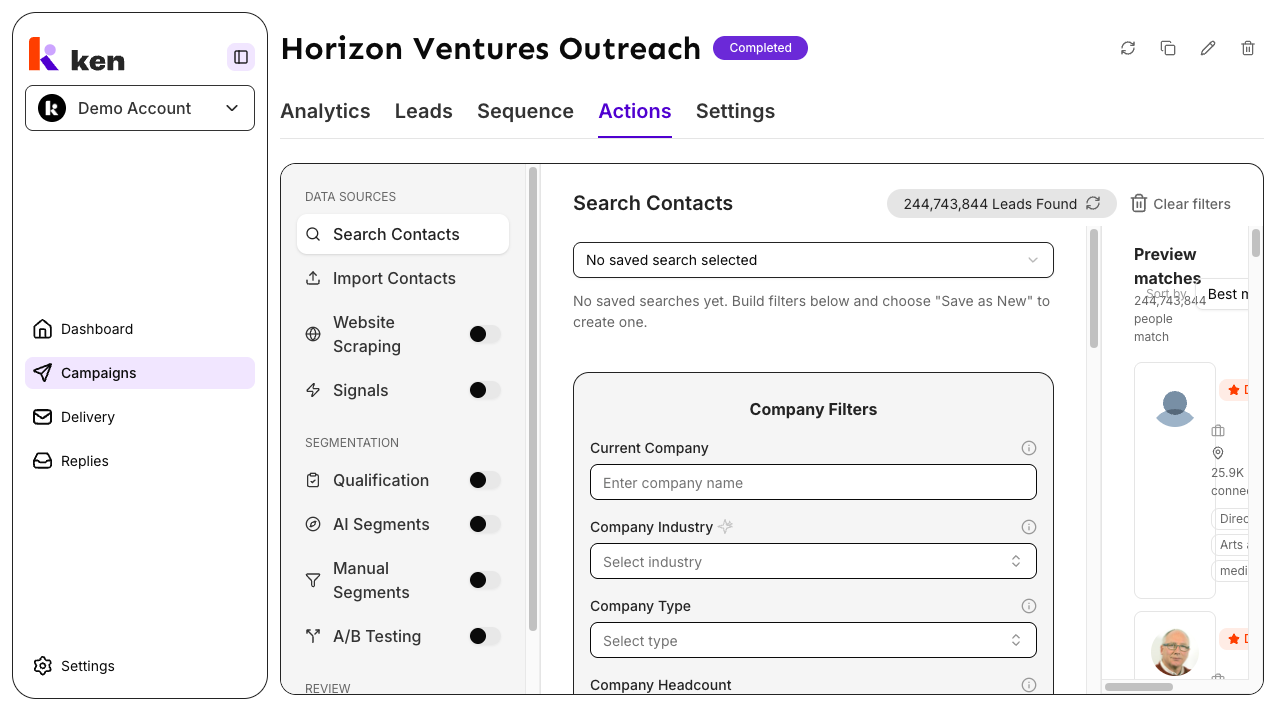
The Preview matches panel on the right shows up to 25 real people per page. Each card shows:
- Name, headline, and profile photo
- Current role and company
- Location and LinkedIn connections
- A Decision maker badge (orange) if the person holds budget authority
- A New role badge (blue) if they recently changed jobs
Click any card to open a detail sheet with full experience, education, skills, certifications, and a View on LinkedIn link.
Use the Sort by dropdown (top-right of the preview) to order results by Best match, Most connections, Name (A-Z), or Recently updated.
The count below the "Preview matches" heading reads "X people match" and updates live as filters change. While results are loading it reads "Searching...".
Scroll to the bottom of the preview and click Load more to page through additional results. The preview is capped at 10,000 total results - this is a platform limit, not a sign that the search is broken.
Step 5 - Save the search (optional)
Click Save Search (below the filters) to name and store the current filter set for reuse across campaigns. Saved searches are shared across your organization.
If a saved search is already loaded, two buttons appear: Update Search (overwrite the existing set) and Save as New (create a copy under a new name).
Step 6 - Import to campaign
When you are happy with the preview, click Import to Campaign. A dialog opens asking how many profiles to import, up to the campaign's remaining import capacity. Enter a number or click Max, then click Start Import. An import job starts and runs in the background. You can close the dialog while it runs.
How it works
Every time you change a filter, the browser waits 500 ms (to avoid firing on every keystroke), then sends the current filter set to Ken's servers. The server validates the filters, maps them to a search request, and queries the Ken Search index - a 280M+ person and company database built on monthly data deliveries.
Results come back 25 at a time. The previous page stays visible while the next page loads, so the screen never flashes empty. If you load additional pages, any duplicate profiles are automatically removed before rendering.
The search supports standard faceted filters (titles, industries, headcount, geography) as well as free-text keywords. Keywords are matched across the person's title, headline, and profile summary. Short keyword queries must match all terms; longer queries match approximately 75% of terms, which keeps recall high without returning irrelevant results.
Behavioral signals - Decision maker and New role - are applied only when they appear on a result card. They are not separate toggles you enable; the index itself scores each person and the relevant badge appears when the signal fires.
The contact index is re-checked monthly for nine buying signals: promotions, job changes, funding rounds, hiring surges, headcount growth, and related events. When a contact in a live campaign matches a signal, they are automatically re-sourced into that campaign's active sequences (subject to a 7-day cooldown per contact). This means an audience built from People Search can grow and refresh automatically without any manual re-import.
Troubleshooting & debugging
Symptom: Filters load but the preview column shows an error message
- Likely cause: the Ken Search backend is unreachable or returned an error.
- What to check: look for a toast or inline error message. The error message text comes from the backend. Try changing a filter slightly to trigger a retry. If the error persists, check backend status.
Symptom: "Failed to load search metadata" or filters panel shows a Retry button instead of dropdowns
- Likely cause: the metadata endpoint (which supplies the facet options for industry, seniority, function, etc.) failed. This can happen if the search service is temporarily unavailable or a TLS/networking issue exists between the frontend and the search backend.
- What to check: click Retry. If it fails a second time, the search service is likely down or unreachable - escalate to engineering. In production this has occurred when the search gateway timed out at the TLS layer; the fix is a service restart on the search backend. Ask the user to try again in a few minutes while the issue is being investigated.
Symptom: Preview count shows 0 results even though filters look reasonable
- Likely causes: (1) the filter combination is too narrow; (2) a location was typed in free text in a field that requires a structured option - only supported countries and cities appear in the location autocomplete; (3) the keyword field contains a term not present in any profile.
- What to check: remove filters one by one and watch the count. Start with location and keyword filters, which are the most restrictive.
Symptom: "Import to Campaign" button is disabled or grayed out
- Likely cause: the campaign has reached its import capacity, or the account has no remaining lead credits.
- What to check: the button tooltip and dialog description show the remaining import cap. Check the billing page for credit balance.
Symptom: Import starts but no contacts appear in the campaign leads list
- Likely cause: the import job ran but encountered a data collision or enrichment issue. A known historical issue caused empty import lists when a company appeared as both a primary and secondary employer on the same contact record.
- What to check: open the campaign's import history or activity log. Look for a job that completed but shows zero processed records, or a job in the "Failed" state. If the import completed with 0 contacts, retry the import after reducing the filter scope.
Symptom: AI suggest (wand icon) for titles or industries does nothing
- Likely cause: no include-mode items have been added to that filter yet. The AI expand feature only runs on items already selected in include mode.
- What to check: add at least one industry or title chip before clicking the wand icon.
Symptom: Preview shows stale results after clearing filters
- Likely cause: the cache key is based on the normalized filter state. Clearing filters resets to the empty form, which has its own cache entry and fetches fresh results. If the count does not drop after clearing, wait a moment - the debounce is 500 ms.
Symptom: AI suggest (wand icon) shows a toast saying "No additional industries found" or "No additional titles found"
- Likely cause: the AI expansion ran successfully but all suggested results were either already present in the filter or not found in the supported options list. This is not an error.
- What to check: if the user has very broad or common industry/title chips, the expansion may genuinely have nothing new to add. Suggest they add a more specific seed chip and try again.
FAQ
Q: Is the preview the same data that gets imported? A: Yes. The preview and the import use the same filters and the same index. The import just pages through more results and writes them to the campaign instead of displaying them.
Q: Why does the preview stop at 10,000 results even though the count says more match? A: The underlying search engine limits deep pagination to 10,000 rows. The count shown at the top of the preview ("X people match") reflects the total matching population; the 10,000 row limit only affects how many you can browse in the preview. The full import is not subject to the same pagination limit.
Q: Can I reuse a saved search across multiple campaigns? A: Yes. Saved searches are shared across your organization and can be loaded into any campaign's Search Contacts panel. Importing from a saved search in one campaign does not affect other campaigns.
Q: How fresh is the data? A: The index is updated on a monthly delivery cycle. Contact records reflect the most recent monthly snapshot. The intent-signal sweep runs on the 1st of each month and re-sources contacts who match job-change, funding, promotion, or hiring signals into active campaigns automatically.
Q: The "AI suggest similar titles" button added titles I don't want. How do I remove them? A: Click the X on any chip in the Title field to remove it. The AI expansion adds chips in include mode; you can also switch a chip to exclude mode by clicking the toggle on the chip.
Q: What is the difference between "Headquarters Location" and "Profile Location"? A: Headquarters Location filters by where the company's main office is. Profile Location filters by the location listed on the individual's own profile, which may differ from the company HQ. Use both if you need the person to be physically present in a region.