
Domains and DNS health
Add or purchase sending domains and monitor SPF, DKIM, DMARC, and nameserver health across your entire sending fleet.
Overview
The Domains tab is your command center for sending infrastructure. It lists every domain registered to your workspace, shows a live DNS health badge for each record (SPF, DKIM, DMARC, and nameservers), and lets you add domains you already own or purchase new ones in bulk - with AI-suggested names filtered to only domains that are actually available to buy.
Find it at Delivery in the sidebar, then select the Domains tab.
Columns visible on the table: Domain, Status, DNS, Provider, Emails Sent, Reply Rate, Click Rate, Bounce Rate, Tags, Forwarding URL, and Expiration Date.
Before you start
- You must have an active workspace selected. Without one, the table shows "Select a workspace" and no domains load.
- Purchasing domains requires operator-level access. Adding domains you already own is available to standard write-access users.
- Domain health data refreshes every four hours on the server. Your browser caches the last result for up to one day. If you changed a DNS record recently, reload the Domains tab to pull fresh data - the badge may still lag by up to four hours even after reload.
How to read DNS health
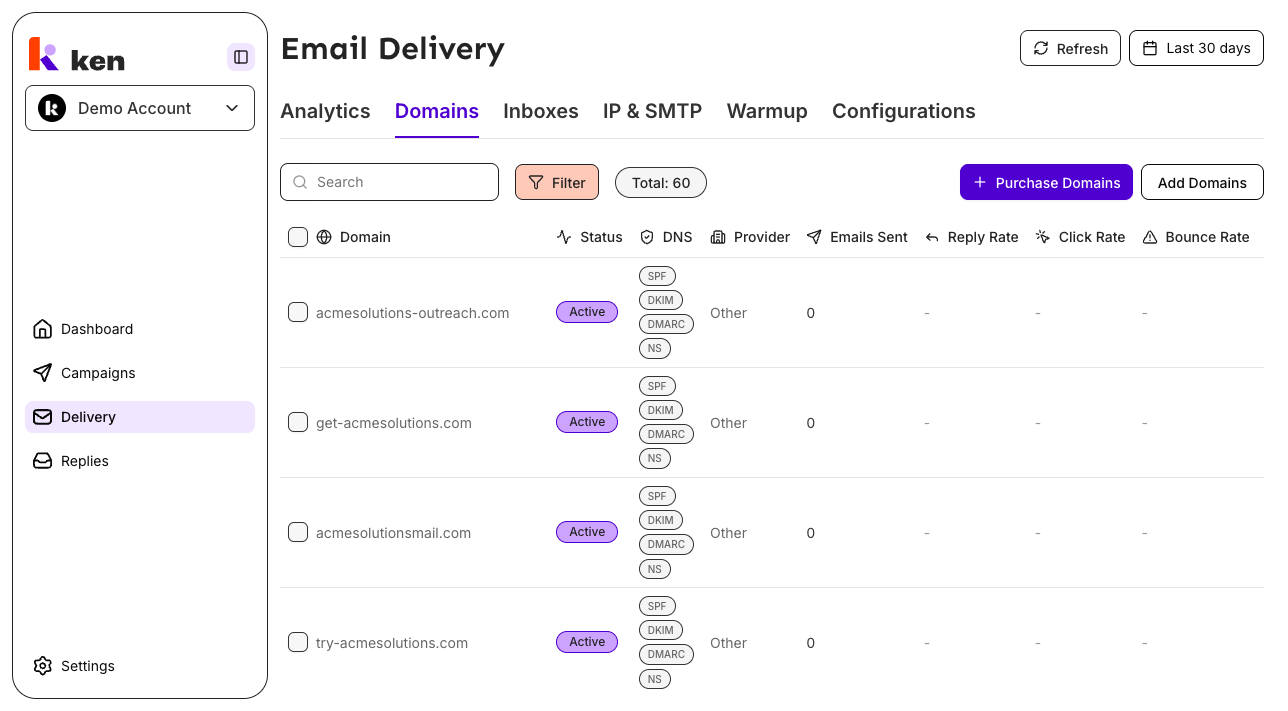
Each domain row shows four chips in the DNS column:
| Chip | Color | Meaning | |------|-------|---------| | SPF | Blue | Record present and verified | | SPF | Red | Record missing or invalid | | SPF | Grey | Not yet checked | | DKIM | Blue | Known selector found and verified | | DKIM | Grey | Could not confirm (see note below) | | DMARC | Blue | Record present and verified | | DMARC | Red | Record missing or invalid | | DMARC | Grey | Not yet checked | | NS | Blue | Nameservers resolved | | NS | Amber | Nameserver lookup failed | | NS | Grey | Not yet checked |
DKIM note: DKIM records live under a selector you choose when setting up your provider. Ken probes five common selectors. If none resolves, the chip stays grey - not red. A grey DKIM chip means "could not confirm," not "definitely broken." Red is only shown when the system has a confirmed failure, not a best-effort miss.
How to add existing domains
Use this path when you already registered the domains elsewhere.
- Open Delivery in the sidebar.
- Select the Domains tab.
- Click Add Domains (top right of the table).
- In the dialog, paste your domain list - one per line or comma-separated. You can paste raw URLs; the importer strips
https://,www., paths, and trailing dots automatically. - Choose a Provider and an optional Configuration.
- Click Next: configure to assign mailbox identities to each domain.
- Click Add domains to save. Up to 100 domains can be submitted per batch.
How to purchase new domains
Use this path to register brand-new domains directly through the platform.
- Open Delivery in the sidebar.
- Select the Domains tab.
- Click Purchase Domains (top right of the table).
- The Search step opens. Click Generate ideas to get AI-suggested base names. Every suggestion shown has been pre-checked against the registrar - you will never see a name that is already taken.
- Click Generate more to get a fresh set of suggestions. Previously shown names are automatically excluded.
- Select the TLDs you want (
.com,.co,.info,.org,.biz,.uk). Pricing for each available TLD is shown next to each option. - Click Next: configure.
- On the Configure step, assign a Configuration and review the mailbox previews. The previews show the exact
first.last@domainaddresses that will be created - the system mirrors the backend's dedupe logic (collisions get a numeric suffix:john.doe,john.doe2, etc.). - Click Next: review.
- On the Review step, confirm your selections and click Purchase to complete the order.
How to edit or delete a domain
- Click anywhere on a domain row to open the edit panel. From there you can update the domain's configuration and settings.
- To delete: open the row actions menu (three-dot icon on the right of the row) and select Delete domain. Deleting a domain stops all inboxes on it from sending.
- To assign an IP to a domain: open the row actions menu and select Assign IP.
How to set a Forwarding URL
The Forwarding URL is where visitors land if they open the domain's root address. It is not a 404 handler - it is a redirect destination.
- Click the value in the Forwarding URL column to open an inline editor.
- To set the same URL on many domains at once: check the boxes next to each domain, then click Set forwarding URL (N) in the toolbar.
How to filter and search
- Use the Search box to filter by domain name within the currently loaded rows.
- Click Filter to narrow by DNS status, provider, or tags. Tag filters are applied server-side, so they work across all pages, not just the ones already loaded.
- The Total: N badge reflects the server-side count (including tag filters). The Filtered: X / Y badge appears when you have active status or provider filters.
How it works
DNS health sweeps
Ken runs a background sweep every four hours that reads the public DNS of every sending domain in your workspace - covering SPF, DKIM, DMARC, and nameservers. It covers domains from all providers, not just domains set up through the platform's own mail nodes.
The sweep resolves real public DNS records. It does not rely on registrar APIs for health data, so what you see reflects actual DNS state as seen by receiving mail servers.
Every change detected during a sweep is written to an audit trail with a timestamp, so you can see exactly when a record broke - useful for tracing an unexpected drop in inbox rate.
DKIM probe order: because DKIM selectors are arbitrary and cannot be enumerated from DNS, the sweep tries five known selectors in order and returns the first that resolves. The matching selector name is stored alongside the result. If none resolves, the domain is marked "unconfirmed" rather than "failed" - the system is honest about the limit of selector guessing.
DNS badges and the three-state model
Badges use three states: pass (blue), fail (red), and unknown (grey). A badge never turns red before the health data has actually loaded. Rows start in the grey/unknown state and flip to pass or fail only after the sweep data arrives and is merged in.
DKIM is treated as best-effort and can never go red. Even a fully-checked domain with no matching selector shows grey, not red, because absence of the five probed selectors does not prove the record is missing.
Domain status
Each domain row shows a status badge that reflects the domain's lifecycle state. Ken uses a non-lossy status model that distinguishes active, warning, danger, and neutral states. An expired or blacklisted domain will not show as "Active."
Domains expiring within 90 days, already expired, or with no expiry date on record have their Expiration Date cell highlighted in amber as an attention signal.
AI domain suggestions
When you use the Purchase Domains flow and click Generate ideas, the platform generates base-name suggestions and checks every combination against the registrar before showing them to you. You are structurally never offered a domain that is unavailable to purchase.
Sender name generation for new mailboxes uses a curated human-name service rather than an LLM, so names are realistic and varied. The system dedupes against the client's existing inbox names so no two inboxes share a sender identity.
Troubleshooting and debugging
All DNS badges are grey
- The health data loads separately from the domain list. If it fails, every badge falls back to grey ("unknown") and the table still renders normally. This is expected degraded behavior - the table is never blocked by a health data failure.
- Wait a few seconds and reload the tab. If badges remain grey after reload, the deliverability health endpoint may be unavailable for your workspace.
A domain shows as healthy but is landing in spam
- DNS health is checked every four hours. A record that broke recently may not yet appear as red.
- DKIM is probed against only five known selectors. If your provider uses a different selector, the DKIM badge will stay grey even when DKIM is correctly configured. Grey is not the same as broken.
- Check the nameserver (NS) chip. An amber NS chip means the domain's nameservers did not respond - a broken NS record can cause all authentication to fail at the receiving end even if the individual records exist.
A domain I added is missing from the table
- The table loads in pages. Use the search box to look for it by name. If it does not appear in search, the add may have failed - check for a toast error and try again.
- If you added more than 100 domains in one batch, the batch was capped at 100. Add the remainder in a second batch.
"Purchase Domains" shows no available suggestions
- This can indicate a temporary registrar availability issue. If all registration lookups fail, the platform surfaces an error rather than showing an empty list that could be mistaken for "everything is taken."
- Try clicking Generate more. If the error persists, wait a few minutes and retry.
"No domains match your search or filters" but I expect results
- The search box matches only within loaded rows. If you have a large list with infinite scroll, scroll down to load more rows before searching, or clear the search and use the Filter panel with a tag filter instead (tag filters are server-side and cover all rows).
Expiration date cell is highlighted orange
- The domain expires within 90 days, has already expired, or has no expiry date on record. Renew the domain with your registrar. If the domain shows no expiry date after renewal, the backend has not yet picked up the updated registration data.
"Add Domains" - my URL paste is not parsing correctly
- The importer accepts lines and comma-separated values. It strips
https://,www., trailing paths, and trailing dots. If a domain still fails validation, it is likely a formatting or TLD issue. Each entry is validated against RFC domain rules with a 255-character cap.
FAQ
How often does DNS health refresh?
Every four hours. The health data is also cached in your browser for up to one day, so if you need to see a change you just made to a DNS record, reload the Domains tab to pull fresh data.
Why is my DKIM chip grey even though DKIM is set up?
Ken probes five common selectors. If your email provider uses a different selector name, the probe returns no match and the chip shows grey. Grey means "unconfirmed," not "broken." To verify DKIM is actually working, check your provider's dashboard or use an external DNS lookup tool.
Can I add more than 100 domains at once?
Each "Add Domains" batch is capped at 100. Submit in multiple batches if you have more.
What happens to inboxes if I delete a domain?
Inboxes on that domain stop sending immediately. The deletion is permanent. If you need to pause rather than delete, edit the domain's status instead.
What TLDs can I purchase through the platform?
Available TLDs are .com, .co, .uk, .info, .org, and .biz. The search step shows which specific combinations are available to buy and their current prices before you commit.
Why does the Forwarding URL column say "Forwarding URL" instead of "404 Redirect"?
The field was renamed to reflect what it actually does: it is the destination where the domain's root URL redirects visitors. It is not specific to 404 errors.