
Inbox warmup
Ken gradually ramps sending volume on new inboxes so mailbox providers learn to trust them before live campaigns start.
Overview
Inbox warmup is the process of slowly increasing how many emails a new sending inbox sends each day. Starting at a low volume and incrementing gradually builds a sending reputation with Gmail, Outlook, and other mailbox providers. Skip warmup or rush it, and your emails land in spam from day one.
Ken manages warmup across three external warmup engines - Warmy, EmailBison, and Plusvibe - from a single control panel. You set the ramp schedule once; Ken pushes the correct settings to whichever engine handles that inbox, monitors live metrics, and alerts you when something goes wrong.
Where to find it: open the sidebar item "Email Delivery", then click the "Warmup" tab. This tab is visible only to internal Ken team members.
Before you start
- You must be an internal Ken team member. The Warmup tab is hidden for client users.
- The inbox must already be provisioned and appear in the Inboxes tab.
- Warmup configuration requires staff-level access to the workspace.
How to configure warmup for an inbox
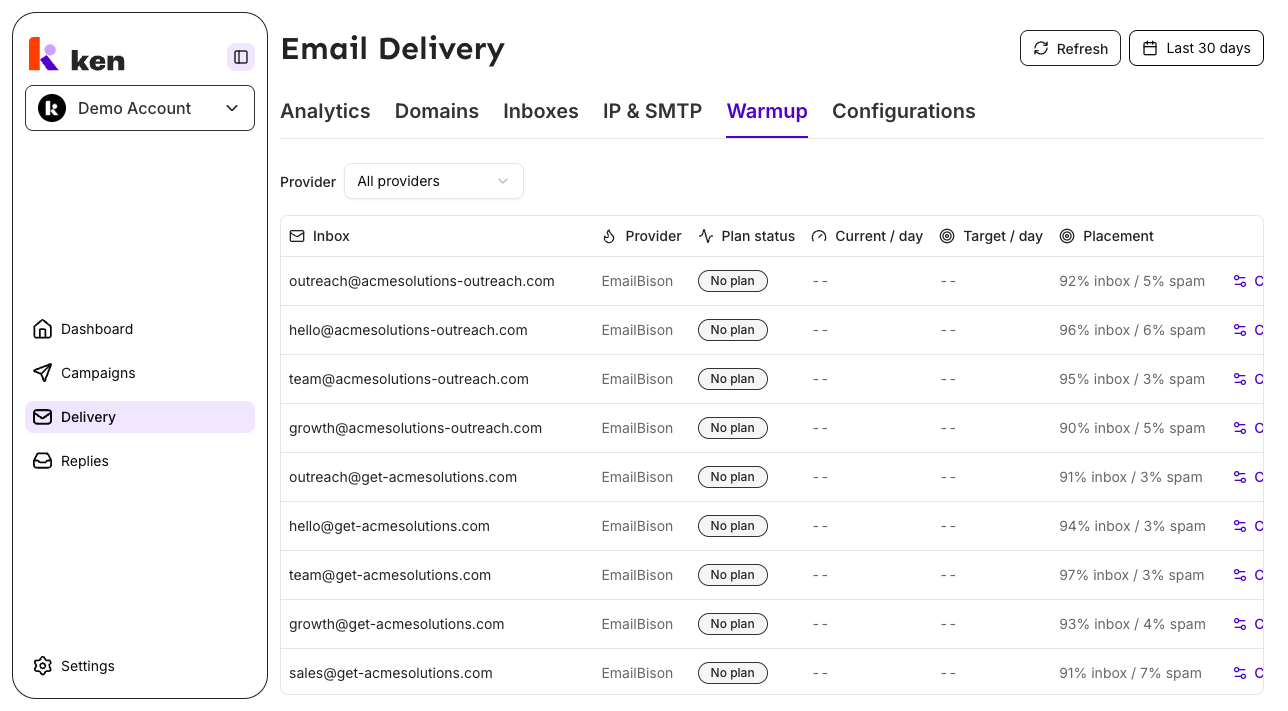
- Open "Email Delivery" from the sidebar, then click the "Warmup" tab.
- You will see a table listing every inbox that has warmup configured. Use the "Provider" dropdown at the top to filter by Warmy, EmailBison, or Plusvibe, or leave it on "All providers" to see everything at once.
- Locate the inbox you want to configure. Each row shows the inbox address, warmup provider, plan status, current daily volume, target daily volume, and the latest placement test result.
- Click "Configure" on the right side of the row. The "Configure warmup" dialog opens.
- Set the toggle "Warmup enabled" to on.
- Choose a "Provider" from the dropdown: Warmy, EmailBison, or Plusvibe.
- Fill in the ramp fields:
- "Start volume" - emails per day to begin with (default: 5).
- "Daily increment" - how many emails to add each day (default: 5).
- "Target / day" - the maximum daily volume to reach (default: 40). Must be greater than or equal to "Start volume" - the form will not let you save a ramp that goes backward.
- If you selected Warmy, an optional "Warmy settings" panel appears. You can set "User max limit", "Reply rate", "Speed mode" (Slow / Medium / Fast), and up to 3 email topics.
- If you selected Plusvibe, a "Plusvibe settings" panel appears. Set "Reply rate (0-1)", "Warmup max daily", "Business type", and toggles for "Custom domain", "Randomize", and "Slow ramp-up".
- If you selected EmailBison, an "EmailBison settings" panel appears. Set "Warmup daily limit" and "Daily reply limit" (enter a number or the word "auto" to let EmailBison tune it automatically).
- Click "Save warmup". You will see a success toast "Warmup enabled." If the provider could not be updated immediately, you will instead see a warning: "Warmup saved, but the provider could not be updated yet. It will sync shortly." The local plan is saved regardless; Ken will push the settings to the provider on the next reconciliation cycle.
How to disable warmup
- Open the "Configure warmup" dialog for the inbox.
- Toggle "Warmup enabled" off.
- Click "Save warmup". A toast confirms "Warmup disabled."
How to run an on-demand placement test
A placement test fires a real email to a network of seed inboxes and measures what percentage land in the primary inbox versus the spam folder.
- On the Email Delivery page, locate the "Run placement test" button (shown on the analytics section of the Delivery page).
- Click "Run placement test". Ken queues one checker per Warmy-managed inbox in your workspace.
- A success toast confirms how many inboxes were queued: "Placement test started for N inboxes. Results appear in your placement score within the hour."
- Results are filled in asynchronously - you do not need to wait on screen. Return to the Warmup tab within the hour and the "Placement" column will show "inbox % / spam %" for each row.
- Click "Configure" on any inbox to see the "Latest placement test" panel with the full breakdown: status, completion date, inbox rate, and spam rate.
Note: placement tests run against Warmy-managed inboxes only. If you see a warning "No Warmy-managed inboxes were found to test for this workspace," check that the inboxes are configured with the Warmy provider.
How it works
Ken's own database owns the desired warmup state for every inbox - the provider choice, start volume, daily increment, and target. When you save a warmup plan, Ken writes the desired state to its database first, then best-effort pushes the settings out to the warmup provider. If the provider push fails (a transient network blip, a vendor outage), the desired state in Ken's database is still correct. A background reconciliation cycle re-applies it automatically. The provider is not the source of truth - Ken is.
The three warmup engines
Ken routes each inbox to one of three warmup engines based on your selection:
- Warmy - connects via SMTP/app-password credentials. Ken auto-registers inboxes on first enable and re-uses any existing Warmy mailbox it finds for that email address rather than creating a duplicate. Warmup emails sent through Warmy are drawn from a template that mirrors the client's latest live campaign email, updated weekly, so warmup traffic resembles real outreach.
- EmailBison - uses EmailBison's native per-sender warmup toggle. The enable step flips the toggle; the ramp targets are applied separately by a scheduled reconciler to avoid a race condition.
- Plusvibe - for SMTP inboxes with full credentials, Ken bulk-registers the account with Plusvibe, reads back the Plusvibe account ID, sets warmup limits and schedule, then enables warmup. OAuth inboxes or inboxes missing credentials skip registration and only enable the toggle.
Plan status values
Each row in the Warmup table shows a color-coded "Plan status" badge:
| Status | Color | Meaning | |--------|-------|---------| | Scheduled | Yellow | Warmup is configured but has not started sending yet | | Active | Green | Warmup is running and the inbox is ramping | | Completed | Green | The inbox has reached its target daily volume | | Failed | Red | The warmup plan encountered an error | | No plan | Gray | No warmup has been configured for this inbox |
Page resilience
The Warmup tab fetches live status from each provider. If one provider's API times out or returns an error for a specific inbox, Ken falls back to the last persisted warmup plan for that row and marks it as stale. The rest of the roster loads normally. You will never see a blank error screen because one provider is having a bad moment.
Analytics
Warmup analytics (average score, reputation, sent / received / spam counts) are rolled up daily per inbox and per provider. The Warmup tab surfaces per-inbox live metrics inline in each table row. The analytics endpoint respects the "Last 30 days" date picker on the Email Delivery page.
Troubleshooting & debugging
Symptom: "Couldn't load warmup status" error on the Warmup tab. Likely cause: a network error or provider API timeout failed the entire status fetch. What to check: click "Retry". If it continues to fail, check whether the workspace has inboxes provisioned in the Inboxes tab. If inboxes exist and the error persists, one or more provider APIs may be experiencing an outage - check provider status pages. The per-inbox fallback means the page should degrade gracefully; a persistent full-page error suggests the API itself is down.
Symptom: "Warmup saved, but the provider could not be updated yet. It will sync shortly." toast after saving. Likely cause: the plan was saved to Ken's database successfully but the push to the external warmup provider failed (rate limit, credential error, or transient outage). What to check: wait 10-15 minutes and reload the Warmup tab. If the plan status remains wrong, check that the inbox credentials (SMTP/IMAP or app password) are valid and that the provider account is active. The reconciler will retry automatically.
Symptom: Inbox shows plan status "Active" but "Current / day" is stuck at the start volume for several days. Likely cause: the warmup provider is not incrementing volume, or the live status read is returning stale data. What to check: open "Configure" for the inbox and confirm the "Daily increment" is set correctly. Check whether the provider shows "active" state in its own dashboard. For Warmy inboxes, verify the mailbox is connected and the template is assigned. If the provider shows active but the column is stale, the live read may be falling back to the persisted plan.
Symptom: Placement test warning "No Warmy-managed inboxes were found to test for this workspace." Likely cause: no inboxes in this workspace are configured with the Warmy provider. What to check: go to the Warmup tab and check the "Provider" column. Placement tests run only against Warmy-managed inboxes. If all inboxes are on EmailBison or Plusvibe, placement tests are not available for them through this button.
Symptom: Placement test succeeds ("Placement test started for N inboxes") but the "Placement" column still shows "--" after an hour. Likely cause: the hourly result-polling job has not run yet, or the results from the provider are delayed. What to check: wait up to 90 minutes and refresh. If results still do not appear, confirm the backend polling job is running. The inbox placement test row will show the status as "Running" until results are written back.
Symptom: "Configure warmup" dialog shows validation error "Target / day must be >= start volume." Likely cause: the "Target / day" value entered is lower than "Start volume". What to fix: increase "Target / day" to be equal to or greater than "Start volume". The form will not save a ramp that decreases volume.
Symptom: Warmy topics are greyed out after selecting 3. Likely cause: Warmy caps topic selection at 3. What to fix: this is expected behavior. Uncheck one topic before checking another.
FAQ
Q: Why is the Warmup tab not visible in my account? A: The Warmup tab is internal-only and is hidden for all client users. Only Ken team members with internal access see it.
Q: Can I switch warmup providers mid-ramp? A: Yes. Open "Configure" for the inbox, pick a different provider, and save. Ken will write the new desired state and push it to the new provider. The previous provider will be disabled. Note that warmup history and scores are tracked per-provider, so you will start fresh with the new provider.
Q: What happens if the warmup provider is down when I save? A: Ken saves your plan to its own database first. If the provider push fails, you will see a warning toast. The plan is safe and will be re-applied by the background reconciler when the provider recovers.
Q: How often does Ken update warmup templates for Warmy? A: Weekly, every Monday morning. Ken builds a template from the client's latest active campaign email and pushes it to Warmy for all mailboxes in that client's workspace. This keeps warmup traffic aligned with the real campaign copy.
Q: What does "Completed" plan status mean - is warmup still running? A: "Completed" means the inbox has reached its "Target / day" volume. Warmup emails continue at that target volume; the status just indicates the ramp is finished rather than still climbing.
Q: Can I run a placement test for EmailBison or Plusvibe inboxes? A: Not through the "Run placement test" button in the current UI. That button creates Warmy placement checkers and only applies to Warmy-managed inboxes. Placement data for other providers would need to be retrieved directly from those providers.