
Import leads from a CSV
Upload a contact list from any spreadsheet tool, map your columns to Ken fields, and let Ken clean, deduplicate, and import your leads in the background.
Overview
The CSV import lets you bring an existing contact list into a Ken campaign from a file instead of building one from the Ken database. You pick your file, tell Ken which column maps to which field, confirm the mapping, and Ken handles the rest - cleaning names, deduplicating companies, and creating contacts in the background.
You can reach the importer two ways:
- During campaign creation - the new-campaign wizard includes a "Map CSV Fields" step (step 6 of 7) when you choose CSV as your data source.
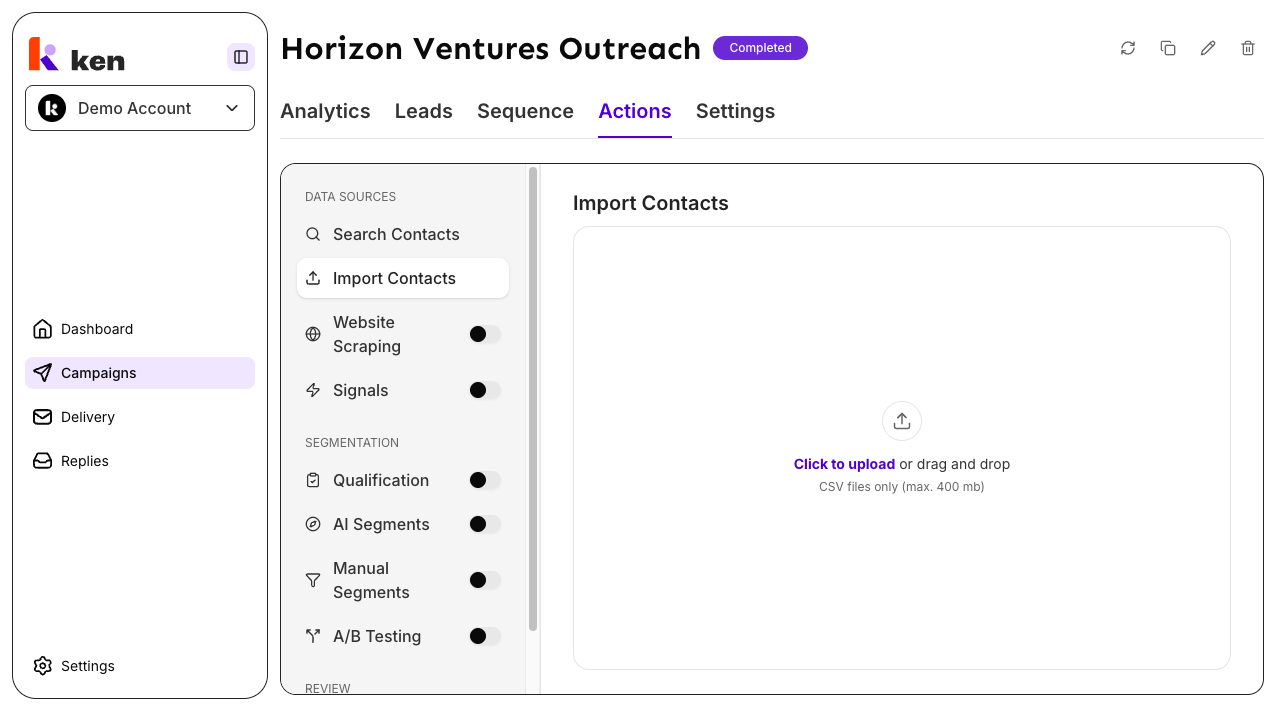
- On an existing campaign - open any campaign, go to the Actions panel, and select "Import Contacts." The panel opens on the right side of the screen.
Both surfaces share the same mapping interface and upload logic.
Before you start
- You must have an active Ken workspace and be a member of the campaign you want to import into.
- The file must be a CSV (
.csv). Excel files must be saved as CSV first. - Maximum file size is 400 MB.
- Every row must include a first name, a last name, and at least one of: company (
company), company name (company_name), or company domain (company_domain). Rows missing all three company fields are skipped.
How to import a CSV
Step 1 - Open the Import Contacts panel
From the campaign wizard: proceed through the wizard until you reach the "Map CSV Fields" step. The step is reached automatically when you select CSV as your data source on an earlier step.
From an existing campaign: open the campaign, click the Actions button on the right-hand panel, and select "Import Contacts." The "Import Contacts" heading appears at the top of the panel.
Step 2 - Upload your file
Drag and drop your CSV file onto the upload area, or click "Click to upload" to browse for it. The upload area reads: "Click to upload or drag and drop" with the note "CSV files only (max. 400 mb)."
Once you select a file, Ken reads the headers and a sample row directly in your browser. No data is sent to the server yet. A progress bar appears while the file streams up.
Step 3 - Map your columns
The mapping screen shows two columns: "Your File" on the left and "Mapped Field" on the right. Each row represents one column from your CSV.
- Under "Your File," you see your column header and a sample value from the first data row (prefixed with "e.g.").
- Under "Mapped Field," use the dropdown to select the Ken field to map to. Type in the search box to filter the list. Select "Skip this column" to exclude a column from the import.
Ken suggests a mapping for each column automatically, based on common header names from Apollo, Sales Navigator, Clay, and other export tools. Check every suggestion before proceeding - suggestions can be wrong when your headers are unusual.
Cleaning preview: if a name or company column will be automatically cleaned before import (for example, a name with hidden characters or excessive whitespace), the row shows "Will be cleaned to:" in orange, followed by the cleaned value. This gives you a chance to verify the result before any data is written.
Required fields: you must map at least:
- First Name (
first_name) - Last Name (
last_name) - One of: Company (
company), Company Name (company_name), or Company Domain (company_domain)
The import button is disabled until required fields are mapped.
Multiple email columns: you can map more than one column to email. Each mapped email column becomes a separate email address on the contact. If you also map an email_validity column, place it immediately after its corresponding email column in the mapping list - validity is paired by position.
Step 4 - Start the import
Click "Import N rows" (the button shows the exact row count Ken found in your file). Ken validates the mapping, then streams the file to the backend.
On success, a confirmation toast appears:
- If some rows were skipped: "Imported X of Y rows. Z rows skipped."
- If all rows passed structural validation: "Import started for N rows. Dedupe runs first, then enrichment continues automatically in the background."
The imported contacts appear in the campaign leads list as processing completes. Enrichment (email finding, profile data) continues automatically after deduplication.
Previous Uploads
Once you have imported at least one file into a campaign, the "Previous Uploads" section appears above the upload area in the Import Contacts panel. It lists the filename, row count, and date of your last 20 uploads into that campaign. This history is stored in your browser and does not sync across devices.
How it works
Browser-side parsing. When you select a file, Ken parses it entirely in your browser without sending it to a server. The parser handles Excel's hidden UTF-8 byte-order mark, quoted fields that span multiple lines, escaped quotes inside cells, and the mixed line endings (\r\n, \r, \n) that different export tools produce. Only three things are extracted: the column headers, the total row count, and a single sample row. Even a 400 MB file produces a small result because no row data is loaded into memory - that is why large files open instantly.
Column mapping by index, not by name. Mappings are tracked by the column's position number, not its header text. This means two columns that happen to share the same name (a common artifact from Apollo and Clay exports) stay independently mappable instead of one silently overwriting the other.
Auto-suggestion from real-world headers. Ken's suggestion engine recognizes dozens of header spellings from common B2B data tools and maps them to Ken fields automatically. Headers are matched case-insensitively and with spacing/hyphen/underscore variations removed, so Company Name, company_name, and companyname all resolve to the same suggestion.
Name and text cleaning. Every imported name, title, and company name goes through a deterministic cleaning pass before it enters the system. This includes: stripping emoji (including multi-character emoji sequences), removing honorific prefixes (Dr, Mr, Mrs, Prof, and others), removing post-nominal suffixes (Jr, Sr, PhD, Esq, and others), collapsing control characters and whitespace, and correcting casing (including locale-aware handling of Mc/Mac and O' name prefixes, and lowercasing nobiliary particles like van/von/de). Company names are stripped of legal entity suffixes (LLC, Inc, Ltd, GmbH, B.V., and many others). The "Will be cleaned to:" preview shows exactly what the cleaned value will look like before the import runs.
Per-row validation and error reporting. The backend validates every row and returns a summary immediately. A bad email address in one row is recorded as a per-email error and dropped, but the rest of that row's fields and valid email addresses still import. A row is only skipped entirely if it fails the structural requirement (missing name and all company identifiers). The error list is capped at 100 items so large files with widespread issues do not produce an unusable response.
Background processing. The API response returns as soon as validation is complete. Contact creation, company deduplication, blocklist checking, and automatic enrichment all run in the background. The success message reflects this: the contacts are "processing" when you see the confirmation, not yet fully created.
Workspace authorization. The upload is checked against your active workspace before a single byte of the file streams to the backend. A stale or mismatched session receives a 403 error before the upload starts.
Upload history is local. The "Previous Uploads" list lives in your browser's local storage, keyed per campaign. It records the last 20 uploads. It survives page refreshes but does not sync across different browsers or devices.
Troubleshooting & debugging
Symptom: "Import failed" or a generic error toast appears after clicking Import.
- Likely cause: the session expired or there is a workspace mismatch.
- What to check: reload the page to refresh your session, then try again. If the error persists, check whether you are logged into the correct workspace.
- If the error message reads "Workspace mismatch on upload," your active workspace changed between opening the panel and clicking Import. Reload and re-open the panel.
Symptom: The import button is disabled and shows 0 rows, or the mapping screen does not appear.
- Likely cause: the CSV file has no parseable headers, or the file is not a valid CSV.
- What to check: open the file in a text editor and confirm the first line contains comma-separated column headers. Files saved from Excel with semicolon or tab delimiters will not parse correctly - re-export as CSV with comma separators.
Symptom: Required field validation error when trying to import.
- Likely cause:
first_name,last_name, or all company identifier fields are not mapped. - What to check: scroll through the mapping list and confirm First Name, Last Name, and at least one of Company, Company Name, or Company Domain are set to a Ken field (not "Skip this column").
Symptom: The import succeeds but the row count in the summary is lower than the file's row count.
- Likely cause: rows were skipped because they failed the structural requirement (missing name and all company identifiers), or duplicate contacts were collapsed during deduplication.
- What to check: the confirmation toast shows how many rows were skipped. Rows are skipped - not errored - when they lack a usable name and company. Bad email addresses on a row are dropped but do not cause the whole row to be skipped.
Symptom: Names appear with honorifics or emoji in the campaign leads list after import.
- Likely cause: the raw value was not cleaned because the column was not mapped to a name field (
first_name,last_name,full_name, orcompany_name). Cleaning only runs on known name fields. - What to check: verify the column is mapped to the correct Ken field. Check the "Will be cleaned to:" preview during mapping - if it does not appear, the cleaning pass is not active for that field.
Symptom: The Previous Uploads list is empty even though imports have been run before.
- Likely cause: the history is stored in browser local storage. A different browser, incognito window, or cleared browser data will show an empty list.
- This is expected behavior. The list is a convenience trail, not a system-of-record for imports.
Symptom: Import times out on a very large file.
- The upload has a 10-minute timeout. Files up to 400 MB should complete within this window on a normal connection.
- If the import times out, try splitting the file into smaller parts (for example, 50,000 rows each) and importing each part separately.
Symptom: Two contacts from the same person appear after importing from multiple files.
- Likely cause: deduplication keys are based on the cleaned combination of name and company domain (or LinkedIn URL when both are absent). If name or domain differs between files, the rows do not collapse.
- What to check: confirm both files have the same spelling for company name and domain. Cleaning normalizes case and removes legal suffixes, but a typo in the domain bypasses dedup.
FAQ
What file formats does Ken accept?
Ken accepts CSV files (.csv) only, up to 400 MB. Excel files (.xlsx, .xls) must be exported as CSV before uploading. Make sure the CSV uses comma separators - files exported with semicolons or tabs will not parse correctly.
Can I map the same Ken field to more than one column?
Only for email and email_validity. Those fields are multi-select. All other fields can be mapped from only one column at a time - if you try to map the same field twice, the second mapping will be blocked or will replace the first, depending on the field.
What happens to rows with invalid email addresses? The invalid email is dropped and recorded in the validation summary, but the rest of the row still imports. A row is only skipped entirely if it is missing a usable name and all three company identifier fields (company, company name, and company domain).
How does Ken detect duplicate contacts? Companies are deduplicated by the combination of name and domain (both lowercased). When both are blank, the LinkedIn URL is used as the dedup key. Contacts that match an existing entry in the campaign are collapsed rather than creating duplicates. The blocklist is also checked during background processing.
Does the import affect my usage credits? Each successfully imported contact counts against your import quota. The confirmation toast shows how many rows were accepted. Skipped rows do not consume credits.
How long does enrichment take after an import? Deduplication runs first, immediately after the background queue picks up the import. Email finding and profile enrichment follow automatically and typically complete within minutes for small lists. Large imports (tens of thousands of rows) may take longer. You can watch progress in the campaign leads list.