
Client approvals overview
Client approvals let you generate a no-login shareable link showing the audience, sample leads, and email copy for a campaign so a client can approve or request changes before anything sends.
title: Client approvals overview slug: client-approvals-overview category: approvals summary: Generate a shareable preview of audience, sample leads and copy so a client can approve before launch.
Client approvals overview
Client approvals let you generate a no-login shareable link showing the audience, sample leads, and email copy for a campaign so a client can approve or request changes before anything sends.
Overview
An approval draft is a real, fully processed mini-campaign built against a small sample of contacts - typically 20. It runs the same AI pipeline as production: qualify, segment, personalize, rewrite. The result is a magic link you paste into a message to your client. The client opens it in a browser, reviews the audience targeting, the lead samples, and the actual copy, then either approves in one click or leaves comments and change requests on specific paragraphs.
Approval drafts live inside each campaign. Open a campaign, then go to the Actions tab and select Approvals in the left rail. The standalone /approvals route redirects here for any scoped link. Feedback from the client appears in real time on the draft detail page - you do not need to wait for the client to submit; saved edits show as soon as they make them.
Before you start
- You must be logged in with a CSM or admin role.
- The campaign must have a saved audience search (or you need a CSV of sample contacts, or leads already in another campaign). Without at least one usable contact source the draft cannot be built.
- The campaign must be at least in a Draft or Ready state. Approvals are blocked on campaigns in Error status.
How to create an approval draft
Step 1 - Open the campaign's Approvals panel
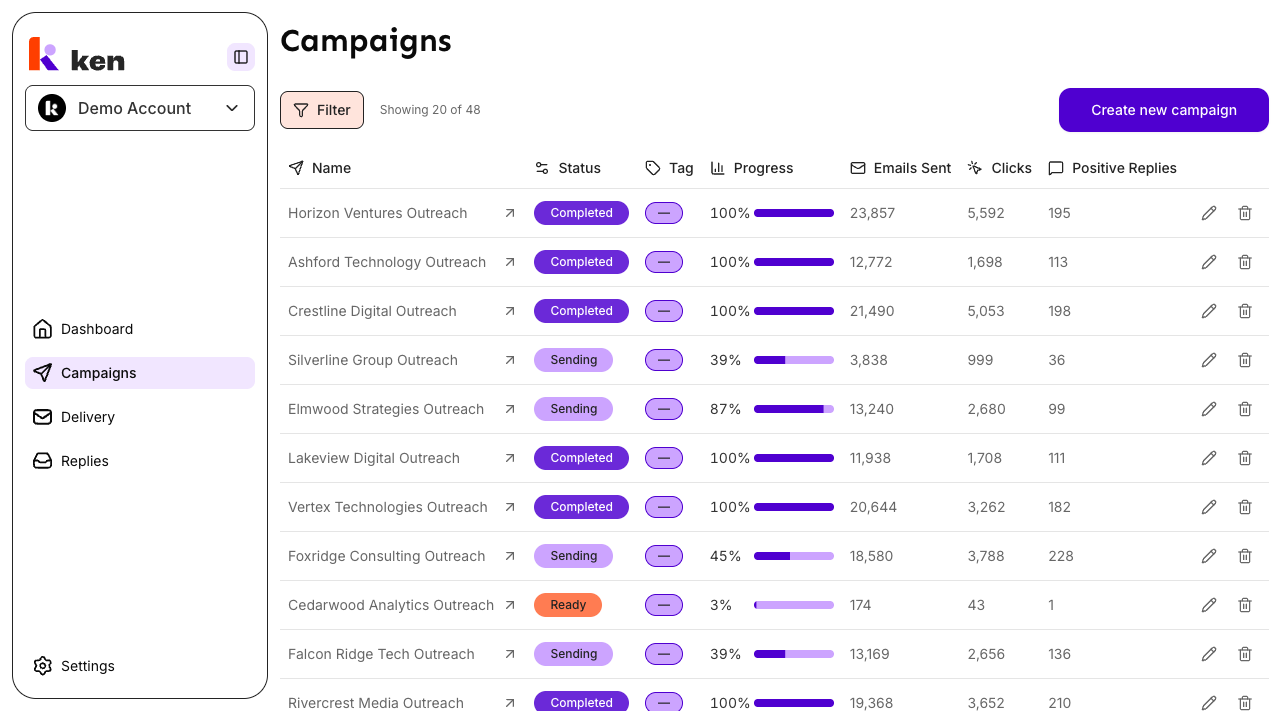
- Go to Campaigns in the left sidebar.
- Click the campaign you want to get approved.
- In the campaign detail, click the Actions tab.
- In the Actions rail, click Approvals.
If no draft exists yet, the panel shows an empty state with an Ask Approval button at the top right.
Step 2 - Fill in the draft form
Click Ask Approval. The form opens inline with the following fields:
Contact source - Choose where the sample contacts come from. Three options are available:
- Saved search - Pulls contacts from a saved people search. This is the default. Select the search in the Saved search dropdown that appears below.
- CSV upload - Upload a CSV file. Required columns are First Name, Last Name, and Company Name or Domain. After upload, map each CSV column to a Ken field using the column-mapping interface.
- From campaign leads - Samples leads already imported into another campaign. Select the source campaign from the Campaign dropdown.
Number of contacts - How many contacts to include in the sample. Default is 20. Maximum is 100. Enter a whole number between 1 and 100.
Click Ask Approval to submit. A success toast reads "Approval draft is building. It will show as Processing."
Step 3 - Wait for the draft to build
The draft appears in the list immediately with a Processing status badge. Processing is asynchronous - the platform is duplicating the campaign, importing the sample contacts, and running the full AI pipeline (qualification, segmentation, personalization, rewriting) in the background.
The list polls every 5 seconds while any draft is processing. When the build completes the status updates to Ready automatically. You do not need to refresh the page.
Step 4 - Copy and send the link
Once the status is Ready, click the link icon in the Share Link column to copy the approval link to your clipboard. A tooltip on a disabled button reads "Link available once the draft finishes processing" while the draft is still building - it becomes clickable when status changes to Ready.
Paste the link into an email, Slack message, or wherever you communicate with the client. The link is a no-login URL - the client does not need a Ken account to open it.
Step 5 - Review the client's feedback
Click any row in the approvals table to open the draft detail. The detail page shows the draft name, status, and the Share Link button at the top. Below is the feedback panel.
While the client is reviewing, saved edits appear under an In review heading before the client submits. When the client submits:
- If they approved everything without changes or comments, the status changes to Approved and the detail shows "Approved by the client."
- If they left any change requests or comments, the status changes to Not Approved and each feedback item appears as a card with a left-border color:
- Green border - item the client approved
- Orange border - Change requested
- Blue border - Note or Line comment
Each card shows the quoted text the client commented on, the comment text, and the author name if the client provided one.
How to rotate the share link
If you sent a link to the wrong person or want to revoke access, click Back to approvals to return to the list, then open the draft detail. Use the link icon next to the draft name to copy the current link. To mint a fresh link and invalidate the old one, contact support - they can rotate the token so the old URL immediately returns a 404.
How it works
When you click Ask Approval, Ken does the following:
- Validates the saved search or contact source has usable data.
- Creates a draft wrapper in Processing status and returns immediately - the draft row and share link token exist before the build finishes, but the Share Link button remains disabled until the draft reaches Ready.
- In the background, resolves the contact source (pages through search results, imports CSV rows, or samples from the source campaign) and picks up to the requested contact count.
- Makes a full deep copy of the campaign - segments, prompts, AI model configs, email sequences, and tracking links.
- Imports the resolved contacts into the copied campaign.
- Freezes a snapshot of the reviewable email content and flips the status to Ready.
- Starts the full AI pipeline - qualification, segmentation, personalization, rewriting - against the sample. Because a 20-contact draft would never reach the normal batch threshold used for live campaigns, the platform drops the threshold to 1 for test drafts so processing begins immediately.
The public approval link your client opens is served from the frozen snapshot. The client can leave per-paragraph comments, mark sections approved or requesting changes, and add notes. All writes are validated against the frozen snapshot so a client cannot tamper with copy that does not exist in the draft.
When the client clicks the final submit button, the draft transitions to either Approved (no change requests or comments) or Not Approved (at least one change request or comment was present). The CSM can see all saved edits in real time even before the client submits.
Magic tokens are cryptographically random. Rotating a token immediately invalidates the old link - the old URL returns a 404.
If the build fails at any point - empty contact resolution, import producing zero leads, a snapshot that cannot publish - the draft transitions to Failed with a human-readable message. The platform also rolls back the copied campaign automatically to avoid leaving orphaned data.
Troubleshooting & debugging
Status stays "Processing" for more than a few minutes
The background build queue may be backed up, or the AI pipeline stalled. Check whether other campaigns are processing at the same time. If the draft has been Processing for more than 10 minutes, treat it as stuck. Open a new draft - the system detects a recent in-flight draft for the same campaign and saved search (within 10 minutes) and returns the existing one instead of building a duplicate, so if the first one recovers, both links point to it. If it transitions to Failed, read the failure reason on the detail page.
Status transitions to "Failed"
The failure reason is shown on the draft detail page. Common causes:
- The saved search returned no contacts, or all returned contacts lacked the required company data (name + company or domain). Adjust the saved search filters and create a new draft.
- The saved search filters were invalid. The system will not retry an invalid-filter error. Correct the saved search and try again.
- The contact import produced zero usable leads after filtering. Broaden the saved search or switch to a CSV upload with more complete data.
- The system queue was at capacity when the build was submitted. The failure message will say to retry. Create a new draft.
The "Share Link" button is disabled
The draft is still in Processing status. The link becomes copyable only when status reaches Ready. Wait for the status to update - the page polls automatically.
The client says they cannot open the link
The token may have been rotated. Verify the link in your clipboard matches the one in the Share Link column. If you rotated the token, copy the new link from the Share Link button on the detail page and resend it.
The detail page shows "Couldn't load feedback"
The feedback endpoint returned an error despite the draft being in a reviewable state. Refresh the page. If the error persists it is a temporary server issue. The draft and the client's feedback are intact - the feedback endpoint is separate from the snapshot.
The approval list does not appear in the Actions tab
You may be on a campaign in Error status, or the campaign has not finished its initial build. Approvals require the campaign to be at least in Draft or Ready state. Check the campaign status badge on the campaign list.
A new draft was created when you expected to see the existing one
The 10-minute idempotency window only de-duplicates drafts for the same campaign and same saved search created within 10 minutes of each other. If you used a different saved search, or waited more than 10 minutes, a second draft was created. Both appear in the list. Use the draft with the most recent Created timestamp.
The client's feedback shows "No feedback yet" but the client says they left comments
The client may have saved edits but not yet clicked the final submit button. Saved edits appear in the In review section before submit; the full feedback list only reflects submitted feedback. Ask the client to submit, then refresh the detail page.
Snapshot gaps - the client sees different copy than what is in production
Approval drafts are built from the campaign's active configuration at the time of draft creation. If prompts, AI models, or sequences were changed after the draft was created, the draft reflects the old configuration. Create a new draft to capture the current configuration.
FAQ
Does the client need a Ken account to open the link?
No. The magic link is a public no-login URL. The client opens it in any browser.
How many contacts are in a draft?
The default is 20. You can set any value between 1 and 100 in the Number of contacts field. The sample is drawn from whatever contact source you select at creation time.
Can I create multiple drafts for the same campaign?
Yes. Each click of Ask Approval creates a new numbered draft (Draft 1, Draft 2, and so on). All drafts appear in the campaign's Approvals list. Each has its own link, status, and feedback.
What happens to the draft after the client approves it?
The draft transitions to Approved status and remains in the list as a permanent record. It does not automatically launch the campaign. You continue the launch process from the campaign itself.
Can I change the draft after it is built?
No. The snapshot is frozen when the draft reaches Ready status. If you need to show the client updated copy or a different audience, create a new draft with the current configuration.
The client left change requests. How do I action them?
Read the feedback cards on the draft detail page. Each card shows the quoted text and the comment. Make the corresponding edits in the campaign prompts or sequence, then create a new draft and share the updated link for a second review.