
Billing and plans
Understand your current subscription, what each plan includes, and what you pay each month - all from one page in Settings.
Overview
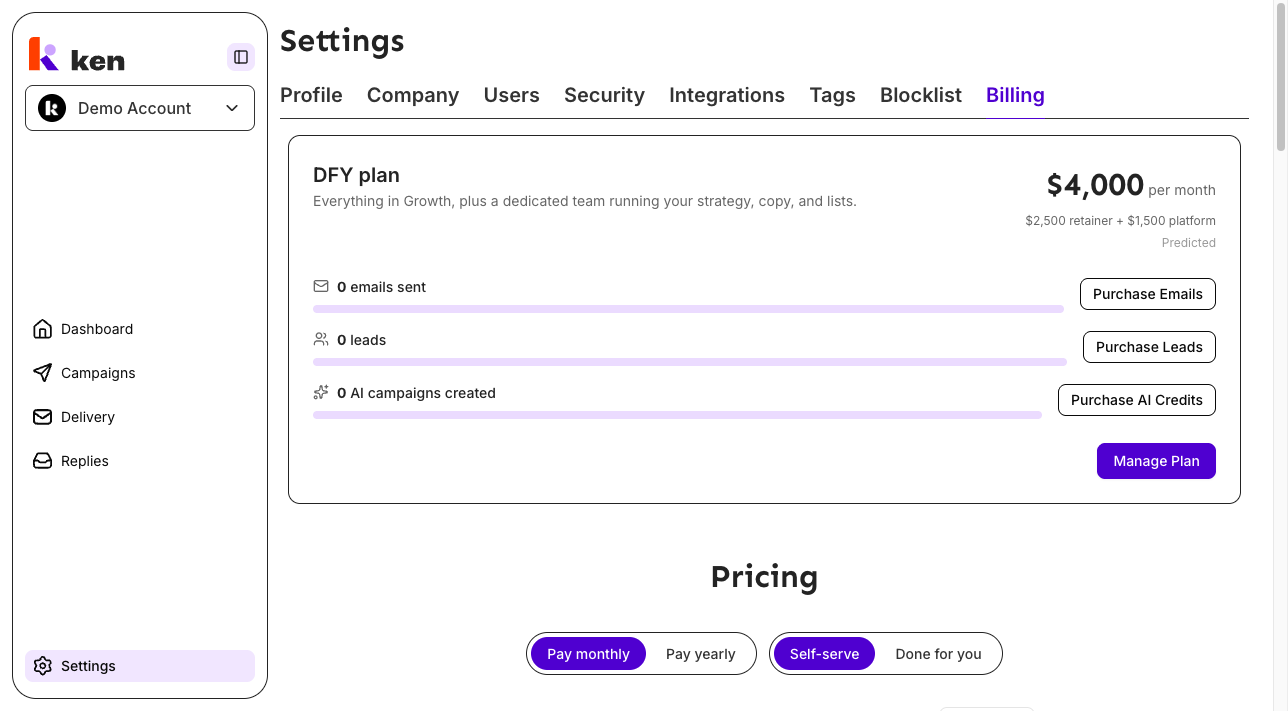
The Billing page shows your active plan, a live usage breakdown, and the full pricing grid. You can upgrade, downgrade, purchase add-ons, and manage payment details without leaving the app.
To open it: click Settings in the left sidebar, then select Billing.
The page has three parts:
- Current plan card - your plan name, the monthly price you are charged, and three usage meters (emails sent, leads, AI campaigns created).
- Pricing section - the full plan comparison grid, with a contacts slider that shows how price scales with volume.
- FAQ - answers to common questions about contacts, rollover, domains, and cancellation.
Before you start
Only workspace Admins can view and change the Billing page. If you hold the Editor or Member role, the page redirects you to your profile settings. Contact your workspace admin to make plan changes.
How to manage your plan
View your current plan and usage
- Open Settings > Billing.
- The card at the top of the page shows your plan name (for example, "Growth plan") and the amount charged per month.
- Below the price, three progress bars show usage against your current-period allowance:
- Emails sent - outbound sends consumed vs. your total for the period.
- Leads - qualified leads with verified emails consumed vs. your allowance.
- AI campaigns created - AI build sessions used vs. your included credits.
- If a bar is near full, use the Purchase Emails, Purchase Leads, or Purchase AI Credits button next to it to top up mid-period.
Upgrade, downgrade, or cancel
- Open Settings > Billing.
- Click Manage Plan (top-right of the current plan card). This opens the Stripe billing portal in a new tab.
- In the portal you can:
- Switch to a different plan (upgrades apply immediately; downgrades take effect at the end of the current period).
- Change between monthly and annual billing.
- Update your payment method or billing address.
- Cancel your subscription (takes effect at the end of the period - you are never cut off mid-campaign).
Choose a plan from the pricing grid
- Scroll to the Pricing section below the current plan card.
- Use the Pay monthly / Pay yearly toggle to compare prices (annual billing saves 20%).
- Use the Self-serve / Done for you toggle to switch between self-serve plans and the DFY service offering.
- Drag the contacts slider to see how the price changes at your expected lead volume.
- Click Start here on the plan card you want to subscribe to.
Purchase add-ons
Add-ons let you top up a specific resource before your billing period resets. They are a one-time charge at your plan's per-1,000 rate.
- Open Settings > Billing.
- Click Purchase Emails, Purchase Leads, or Purchase AI Credits next to the relevant usage meter.
- In the dialog, use the + and - buttons (or type a quantity) to choose how many units to add. The total cost updates in real time.
- Click Purchase [amount] to proceed to checkout. You are redirected to Stripe and then back to the Billing page on completion.
Add-on minimums and increments:
- Emails: 4,000 sends minimum, steps of 4,000 (because every lead covers 4 sends).
- Leads: 1,000 minimum, steps of 1,000.
- AI credits: 1 minimum, $5 per credit.
Contact sales for Done for you
The Done for you (DFY) plan is sales-led - there is no self-serve checkout for it.
- Switch the Self-serve / Done for you toggle to Done for you.
- Review the feature list and the flat $2,500/month retainer.
- Click Talk to founder to book a call and start the onboarding conversation.
Note: DFY is a service retainer billed on top of a self-serve plan (Growth or above). Your platform subscription is separate from the DFY retainer.
How it works
Plans at a glance
| Plan | Base price | Included leads | Included domains | Users | |------|-----------|---------------|-----------------|-------| | Free | $0/mo | 1,000 (capped) | 0 | 1 | | Starter | $200/mo | 1,000 | 1 | 5 | | Growth | $750/mo | 5,000 | 5 | Unlimited | | DFY | $2,500/mo retainer + self-serve plan | 10,000 | 10 | Unlimited |
Starter scales up to 4,000 contacts at $200 per additional 1,000. Beyond 4,000 contacts, the pricing grid grays out the Starter card and shows Growth instead.
Growth uses graduated pricing above the included 5,000 contacts. The rate steps down as volume rises - from $150/1,000 at low volumes to $70/1,000 at the high end. The contacts slider on the pricing page reflects these tiers in real time.
Annual billing applies a 20% discount on the base price. Contacts still release each billing period rather than all at once.
What counts as a lead
You are only charged for contacts that are both qualified and have a verified email - the finished, usable output. Upstream search attempts, enrichment lookups, and failed verifications do not count toward your lead allowance.
Sending domains
Ken owns and manages the sending domains. Domains are kept entirely separate from your company domain, prewarmed by the delivery team, and redirect to your website while your subscription is active. You do not configure DNS. On cancellation, domains stay live for two weeks so you can finish active campaigns and migrate leads.
The price shown on the current plan card
When your Stripe subscription has a confirmed billing amount, the card shows that exact amount. If the subscription has not been confirmed yet (for example, immediately after signup or during a plan change), the card shows a computed estimate labeled Predicted in small text below the price.
For DFY accounts, the price breakdown shows the retainer and the underlying self-serve platform charge separately: for example, "$2,500 retainer + $8,250 platform".
After checkout
When you return from Stripe Checkout, the page shows a brief toast:
- "Payment received. Your plan is being updated." - on success.
- "Checkout cancelled. No charge was made." - if you closed Checkout without completing payment.
Role enforcement
The billing page performs a server-side role check on every load. Users with the Editor or Member role are redirected to their profile settings. Only the Admin role can see or change billing.
Troubleshooting and debugging
Symptom: The Billing page redirects to /settings/profile
- Likely cause: The logged-in user does not have the Admin role.
- What to check: Ask a workspace admin to visit Settings > Billing on your behalf, or ask them to grant you the Admin role if appropriate.
Symptom: Usage meters show 0 or stale numbers
- Likely cause: A known issue where the backend usage reconciliation job may not update in real time. This is a backend-side bug, not a frontend display error.
- What to check: Confirm that the backend billing service is running and that usage events are being processed. The metrics are fetched fresh on each page load; a hard refresh rules out a stale client cache.
Symptom: "Could not open the billing portal. Please try again."
- Likely cause: The Server Action that creates the Stripe customer-portal session failed, or the session timed out after a recent deploy.
- What to check: Reload the page and try again. If the error persists after a reload, check that the backend billing endpoint is reachable. A stale Server Action (from a tab left open across a deploy) produces a 404 that surfaces as this toast.
Symptom: "Could not start the add-on purchase. Please try again."
- Likely cause: The add-on Stripe Checkout session failed to create.
- What to check: Same as the portal error above - reload, then retry. Confirm the backend
/v1/billing/add-ons/checkoutendpoint is healthy.
Symptom: Manage Plan opens but shows incorrect plan details
- Likely cause: The Stripe customer-portal session is live data from Stripe and may briefly lag behind a just-completed plan change.
- What to check: Wait a few seconds, reload the Billing page, and open Manage Plan again. If the discrepancy persists, check the Stripe dashboard directly.
Symptom: Price shows "Predicted" instead of an actual amount
- Likely cause:
actualMonthlyAmountis null on the subscription response - either no active Stripe subscription exists, or the backend could not read the confirmed amount (e.g. in the window between signup and Stripe confirming the subscription). - What to check: Verify the subscription is active in the Stripe dashboard. If it is active and the label persists beyond a few minutes, check that the backend is reading the Stripe invoice amount correctly and returning it in the
SubscriptionDto.
Symptom: Billing page renders the pricing grid but the current plan card is missing
- Likely cause: The
getSubscription()Server Action threw an error, and the page soft-failed to a null subscription state. The pricing grid still renders; the current plan card does not. - What to check: Check server logs for the billing backend error. The page is designed to degrade gracefully, so this is not a crash - but it does mean live usage data is unavailable.
Symptom: Starter plan is grayed out on the pricing grid at high contact volumes
- Expected behavior, not a bug. Starter is capped at 4,000 contacts. When the slider is dragged above 4,000, the Starter card intentionally grays out to prompt an upgrade to Growth.
FAQ
What is the difference between a lead and a contact? A contact (or lead) is a qualified person with a verified email - the output you can actually send to. You are only charged for those. Unqualified prospects, failed email lookups, and enrichment attempts do not count.
Do unused leads roll over to the next month? No. Your lead allowance refreshes at the start of each billing period. If you need more before the reset, top up using the Purchase Leads button on the current plan card.
Does annual billing give me all my leads up front? No. Annual billing reduces the per-month price by 20%, but leads still release one billing period at a time. You get a lower rate, not a year of volume to spend immediately.
Can I switch plans at any time? Yes. Upgrades apply immediately. Downgrades and cancellations take effect at the end of the current billing period, so active campaigns are never interrupted. Your campaigns, leads, and copy all remain in your account.
What happens to my sending domains if I cancel? Domains stay live for two weeks after cancellation so you can finish active campaigns and migrate your leads. After that window they are taken offline. Domains do not transfer - Ken owns and manages them.
Who owns sending domains and how do they work? Ken owns all sending domains. They are separate from your company domain, fully configured and prewarmed by the delivery team, and redirect to your website during your subscription. You do not touch DNS settings.