How the keys work
What the focus is
The focus is the row the keys act on. When you press a key, it acts on that row and no other. Only one row has the focus at a time. To spot it:
- It has a gray background and a purple line on its left.
- Its buttons appear. The main button shows its key, such as Reply ↵. For the small buttons, hover over them to see their key.
- It starts on the first row when you open Today. When you come back from another page, it's on the row you left.
Act on the row with the focus
Press J to move the focus down and K to move it up. When it's on the row you want, press one key to deal with it. Each key does the same as one of the row's buttons:
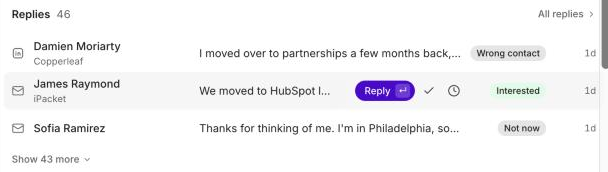
- The row with the focus: here James Raymond's reply.
- Reply (↵): the main button. Press ↵ to click it.
- Mark done (E): the check mark.
- Snooze (H): the clock.
- Press just one key. You don't press G first, as you do for the shortcuts that open pages.
- Mac and Windows. Where this article says ⌘, press Ctrl on Windows.
Every key on Today
Some keys only work on some rows. The next section, Which rows each key works on, explains which.
Move between rows
- Jor↓Next row: moves the focus down one row.
- Kor↑Previous row: moves the focus up one row.
Open and close
- ↵Open: clicks the row's main button, the one with the ↵ sign.
- EscClose: closes the side panel, a menu or a window.
Deal with a row
- EMark done: clears the row from your list, the same as clicking the check mark.
- HSnooze: hides the row and brings it back later, the same as clicking the clock.
- ⌘↵Approve: approves a step, such as an email waiting for your OK, the same as clicking the button with the ⌘↵ sign.
- SSkip: skips a step, so it won't send.
Take it back
- ZUndo: takes back your last action. ⌘Z works too. See Undo a key you pressed by mistake.
See every key
- ?Shortcuts: opens the Keyboard shortcuts window. Today's keys are in its Lists group. S isn't listed there, but it still works.
Which rows each key works on
Each key is a shortcut for a button, so a key only works on a row that has that button. Which buttons a row has depends on what the row asks of you:
- Rows in Needs you, Replies, Meetings and Signals are things to handle. You answer a reply, get ready for a meeting or read a signal, and then it's done. So these rows have Mark done (E) and Snooze (H).
- Rows in Tasks and To approve ask a question: should this go out? You say yes or no. So these rows have Approve (⌘↵) and Skip (S).
- Reply (↵): ↵ works on every row the focus reaches. On things to handle, it clicks the button with ↵, such as Reply, Open brief or Open account. On rows in Tasks and To approve, ↵ opens the step in the side panel.
- Mark done (E): hover over the check mark and you see “Mark done · E”.
- Snooze (H): the row comes back on its own. When depends on the kind of row: a reply comes back 2 business days later at 09:00, a signal the next Monday at 08:00.
- Approve (⌘↵): on a connection request, this button is Accept as lead, and ⌘↵ does that.
- Skip (S): the button doesn't show its key, but S works.
One exception: some steps in Needs you can only be approved by a teammate, such as a LinkedIn message sent from their account. The row says who. These rows have no Approve and no Snooze, so ⌘↵ and H do nothing. You can still press ↵ to open the account. To clear the row, click its check mark, Mark done.
Where the focus goes
- The focus moves down the page through Needs you, Replies, Tasks, To approve and Signals, and Meetings when it has rows.
- It also reaches rows hidden under Show more. The section opens by itself when the focus gets there, and closes again when the focus leaves.
The focus never goes to these parts of Today, so use the mouse there:
- Calls
- Yes or no cards, such as Is this them?
- Deals, bookings and campaigns, such as Went quiet
- Housekeeping, Heating up, Done and Performance
Two more things to know:
- After you clear a row, the next row gets the focus. The cleared row leaves the list, so you can keep pressing keys without moving the focus yourself.
- The mouse moves the focus too. Move your mouse over a row and that row gets the focus. When the mouse leaves the rows, no row has the focus and ↵ does nothing. Press J or K to bring the focus back, starting from the last row you were on.
Undo a key you pressed by mistake
Pressed the wrong key? Press Z right away. Each time you clear a row, a message at the bottom of the screen says what happened, such as “Marked done · Sofia Ramirez” or “Skipped · it won't send”.
- To undo, press Z or click Undo on the message. The row comes back and the message changes to “Undone”.
- You have 5 seconds. Then the message goes away. If you need more time, keep your mouse on the message: the timer pauses.
- Only your last action can be undone. When you clear another row, the new message replaces the old one, and the old action can't be undone with Z anymore.
- Too late for Undo? A row you marked done in Needs you, Replies, Meetings or Signals can still come back: open Done at the bottom of Today and click Reopen. An approved email or a skipped step can't come back this way. Only Undo brings it back.
Open an approval in the side panel
When you press ↵ on a row in Tasks or To approve, the step opens in the side panel on the right. There you can read the whole message, see who it goes to, and see why Ken suggests sending it now. The panel has its own keys, shown on its buttons:
- Approve (⌘↵): the same as Approve on the row.
- Edit (E): lets you change the text before you approve it. Careful: in the side panel, E means Edit, not Mark done.
- Skip (S): the same as Skip on the row.
Press Esc to close the panel. While it's open, J and K don't move the focus on Today. Close the panel first to move to another row.
Links to an approval. Some links take you straight to one approval, for example a notification in the bell or a link in an email from Kenso.
- When you click the link, Today opens with that item in the side panel and the focus on its row.
- After you close the panel, the link has done its job. If you reload the page, the panel doesn't open again.
- If the item was already handled, Kenso says “That approval isn't waiting on you anymore.”
If a key doesn't work
- You're typing in a box. The keys don't work while you type, for example in Ask Ken or a reply. This is on purpose: otherwise, typing a word with an “e” in it would mark a row done. Press Esc or click outside the box first.
- The side panel, a menu or a window is open. Your key presses go to it, not to the rows. Press Esc to close it.
- No row has the focus. Your mouse moved off the rows. Press J or K first.
- The row doesn't have that button. For example, E does nothing on a row in To approve, and S does nothing on a reply. This includes steps only a teammate can approve. See Which rows each key works on.
- The row is in a part of Today the focus skips, such as Calls or Housekeeping. See Where the focus goes.
Next steps
- Start your day with Today: what each part of Today is for, how to clear a row, and a short routine for the morning.
- Jump between pages with G shortcuts: press G, then one letter, to open any page in Kenso without the mouse.